Zkool works with two Ledger apps for Zcash:
- the official Zcash app by Ledger. It supports the transparent and the Orchard / Ironwood pools, and follows the regular derivation of the seed phrase,
- the Zcash Shielded app by Zondax. It supports the transparent and the Sapling pools, with a custom derivation.
Prefer the official app. The Zondax app is older and only has Sapling.
Warning
The Zondax app has been broken by network upgrades in the past. Do not keep shielded funds on it unless you have checked that the current version can sign.
If you have funds locked in a Zondax account, you cannot use its seed phrase in another wallet because of its custom derivation. However, Zkool restores a Zondax seed phrase when you toggle the H/W Ledger switch and choose the Zondax app.
Requirements
Zkool is compatible with the Ledger NanoS+, NanoX, Stax, Flex and later. It is not compatible with the Ledger NanoS.
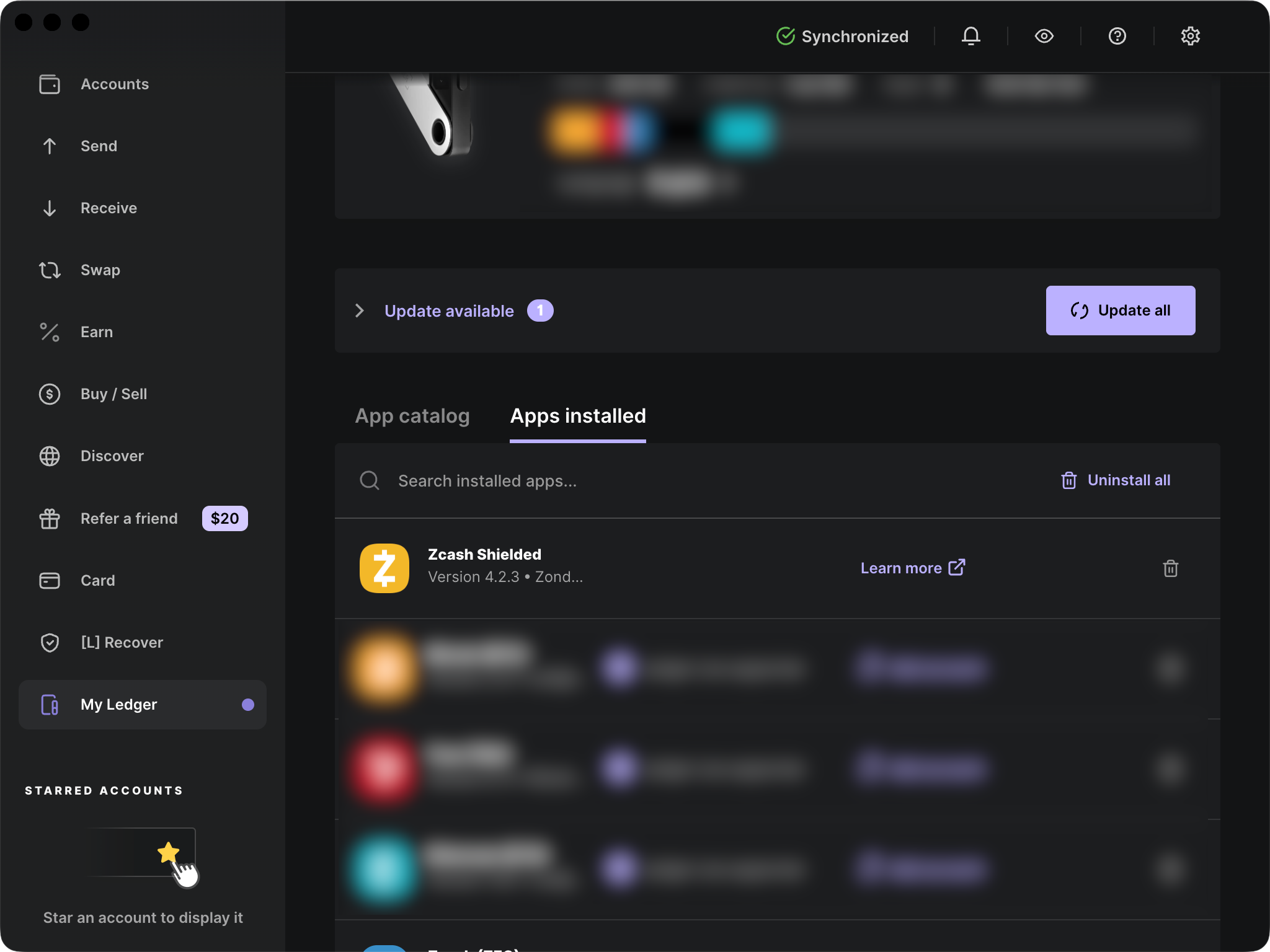
Install the app using Ledger Live.
Important
The Ledger apps can be finnicky. They sometimes stop responding to commands from the host app without notice. I have the best experience when I connect the device, unlock it and launch the Zcash app before starting Zkool.
For Linux Users
If you have permission errors:
From the Ledger website
- Open the terminal on your computer.
- Run:
wget -q -O - https://raw.githubusercontent.com/LedgerHQ/udev-rules/master/add_udev_rules.sh | sudo bash - Try again to access My Ledger or perform the Genuine check.
Importing a Ledger account
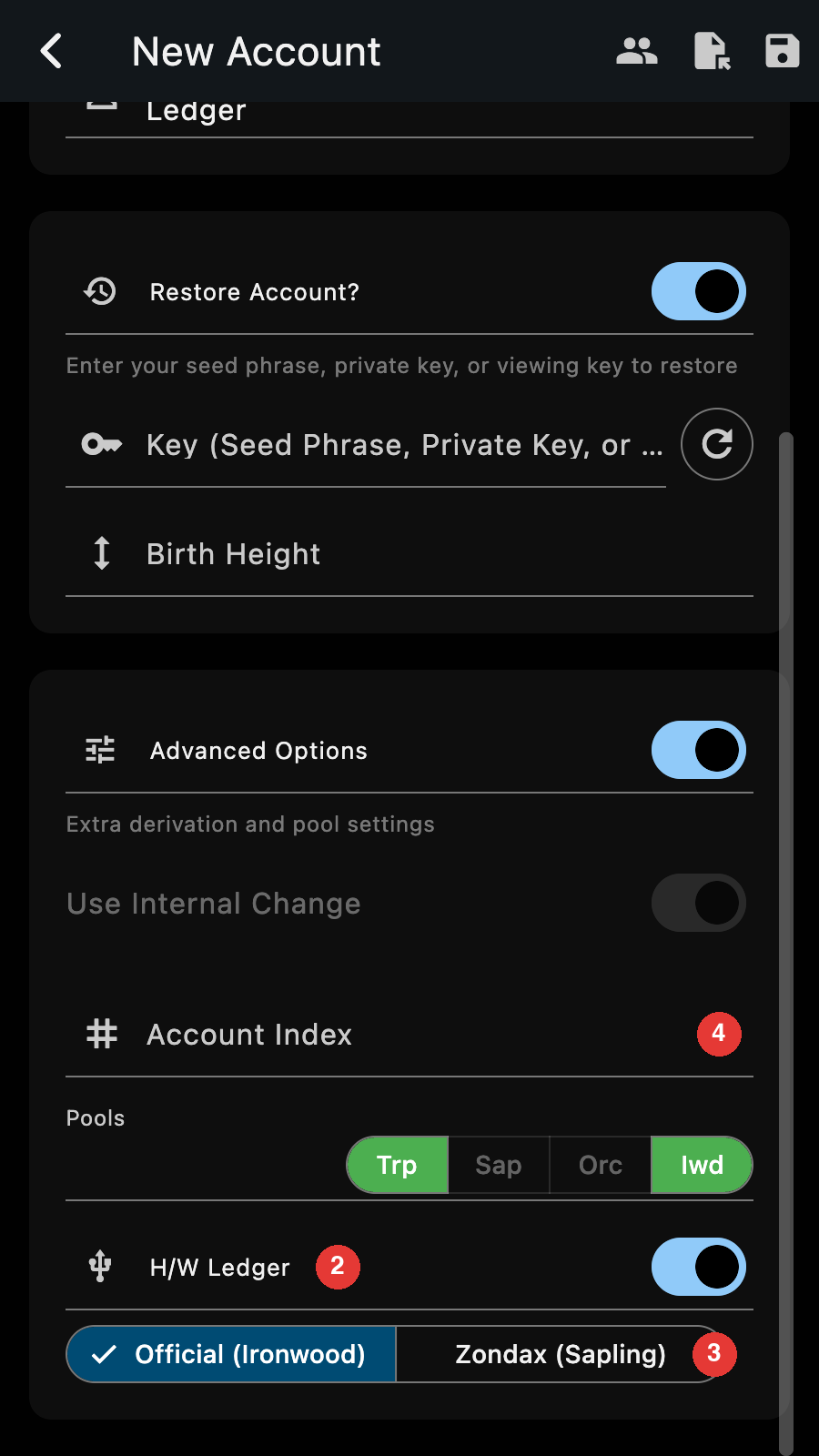
Create a new account as usual, switch on "Advanced Options" and then:
- enter the account name,
- turn on the "H/W Ledger" switch,
- choose the app: "Official (Ironwood)" or "Zondax (Sapling)",
- enter the account index. 0 for the default account,
- enter the birth height: the block height at which the account was created[1].
Leave the key field blank: the viewing key is imported from the device. Save the new account.
Warning
Make sure the Ledger is connected and unlocked. The Zcash app MUST be running. Ledger Live or other apps that use the Ledger MUST NOT be running.
Importing a Ledger account takes around 1 minute. At some point, you will be requested to review some addresses/keys on the device and approve.
If the import fails or takes too long, disconnect/reconnect the device and restart Zkool.
Tips
When the Ledger performs a task, its UI freezes and the buttons are unresponsive. If you are waiting and expecting the Ledger to be working, click on the buttons to check that it is indeed processing.
Note
The internal change setting is decided by the app: the official app always uses an internal address for the change, the Zondax app never does.
Scan Transparent Addresses
If you have received funds in this account, be sure to scan for alternative addresses because the Ledger Live app rotates addresses. Zkool offers the scan when the account is created.
Sync
Sync to get the transaction history and balance.
Receive/Send
To receive funds, you just need the address. You don't need the device itself.
Important
Verify that the address you use to receive matches the one that your ledger has. Otherwise you could be sending funds to a hacker's address.
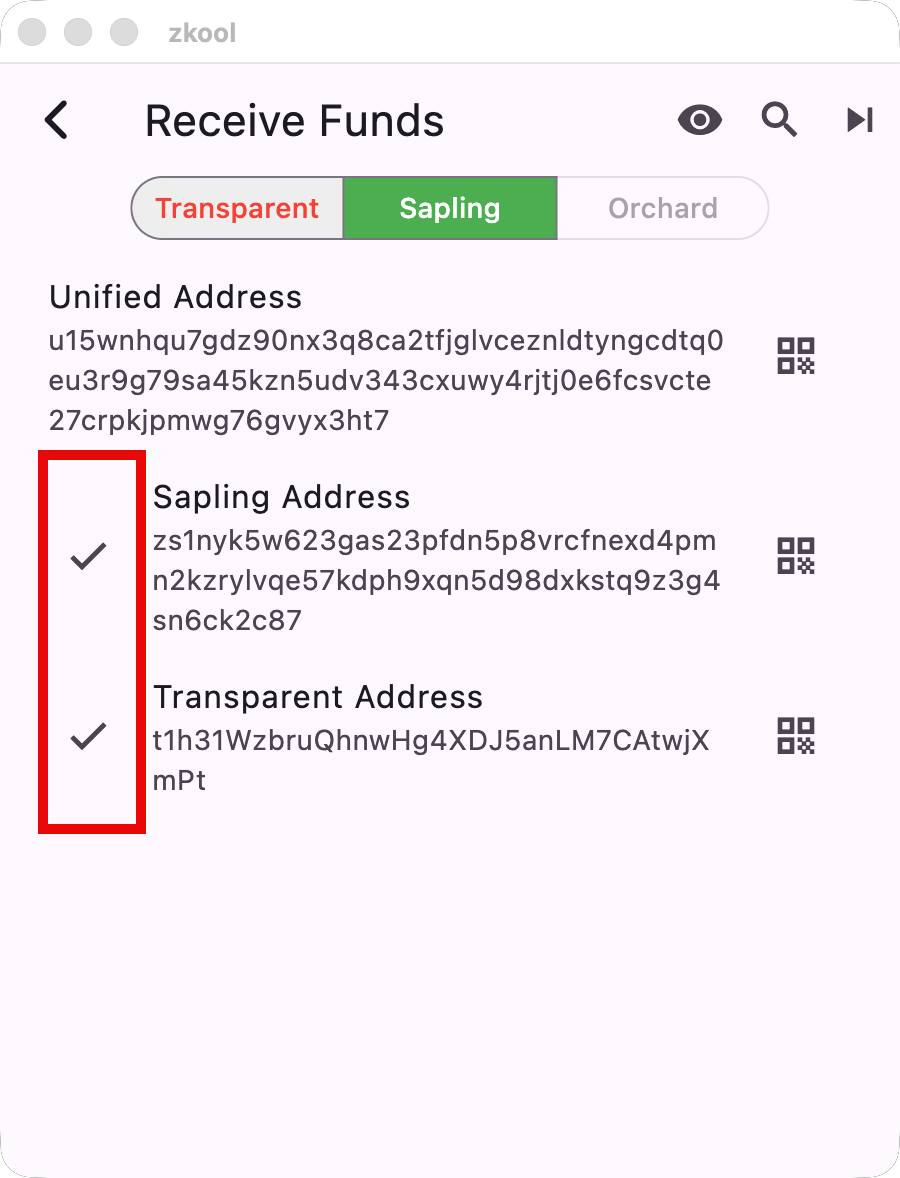
Press the check buttons to make the Ledger show its address and verify that it matches the address in the wallet.
Sending is not different from sending from a regular account. The device asks you to confirm the transaction. However, the Zondax app limits a transaction to 5 inputs and 5 outputs of each type (transparent/sapling).
If your transaction is too complex, you may want to consider using Coin Control (i.e. locking notes) to limit the number of inputs.
Signing a Ledger transaction may take several minutes.
New Diversified Addresses
With the official app, pressing the new diversified address button works as for a regular account.
With the Zondax app, it gives you a new set of transparent + sapling addresses. However, the diversifier index associated with these addresses does not follow ZIP 316[2].
For transparent addresses, the address index gets incremented by 1. For sapling addresses, the diversifier index is chosen pseudo-randomly.
ZIP-32
The Zondax app does not derive the sapling account according to ZIP 32 because ZIP 32 requires access to the seed phrase that is protected by the OS[3].