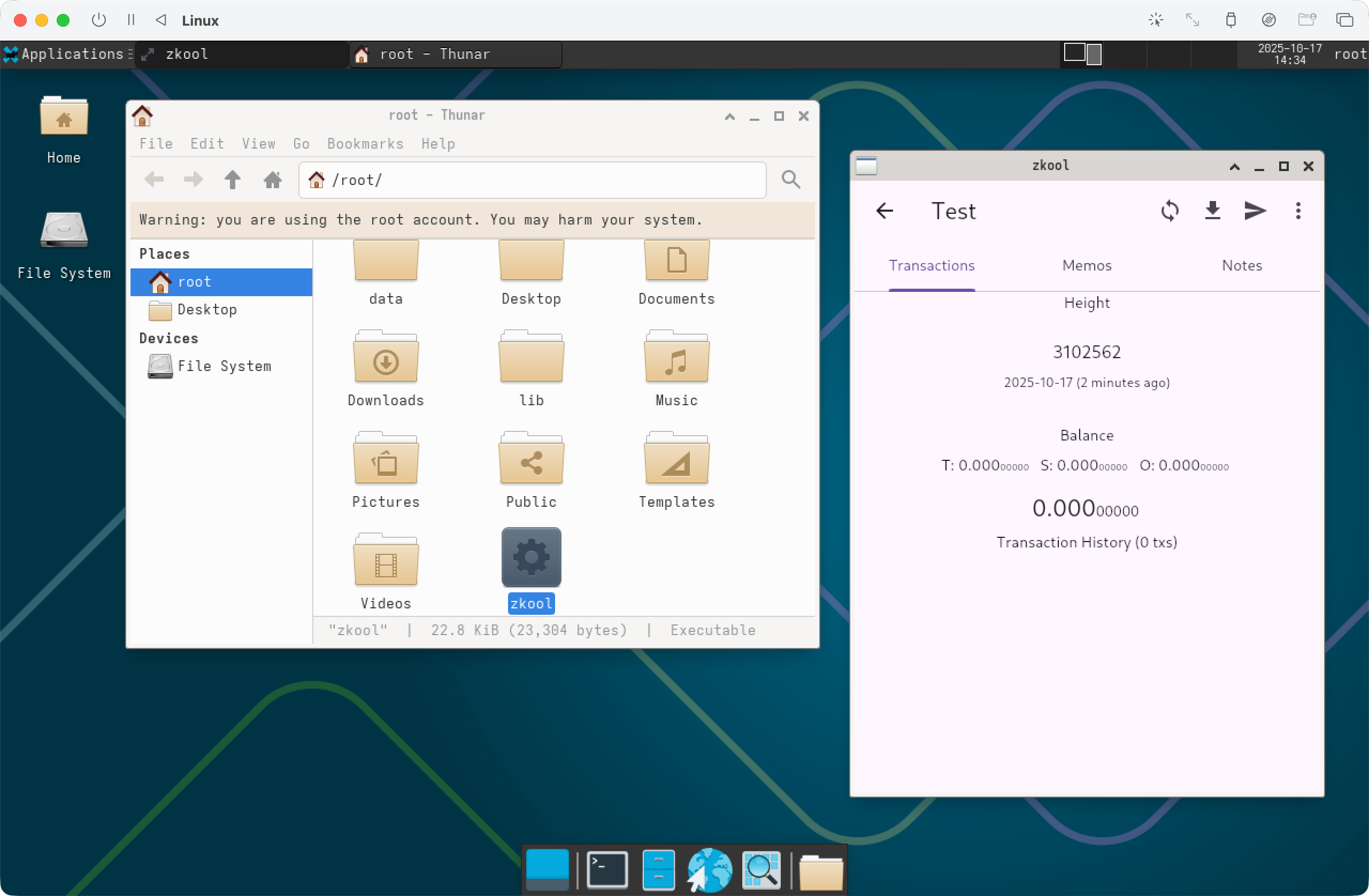
Kiosk Zkool is a version of Zkool that runs from a CDROM or USB stick and bundles the Linux operating system as well as a minimal Window Manager.
USB or CD-ROM
On Linux/MacOS, you can use the tool dd. Windows has Rufus.
Warning
dd ERASES THE ENTIRE DISK. Make sure that you use a USB drive you have no data you need to keep in any of the partitions.
- Insert your usb drive.
- Check the corresponding
/dev. The first disk is/dev/sda. The second one is/dev/sdb, etc.
Warning
Make sure you have the right device or you will erase the wrong disk.
If everything is correct, as root, run dd if=zkool.iso of=/dev/sdX bs=4M status=progress oflag=sync
You have now a bootable USB drive with Zkool.
Boot
Boot your computer with the USB drive and select the first option from the boot menu.
At the prompt, enter root for the username. There is no password. You should get the command prompt.
Network
For security reasons, the system has NO NETWORK connection enabled. It can be used as a cold wallet for instance.
If you want to connect to the Internet, you need to manually enable the WIFI device.
- Start the NetworkManager:
systemctl start NetworkManager - Get a list of the WIFI networks (SSID):
nmcli d wifi list - Connect to a network:
nmcli d wifi c <SSID> --askYou will be prompted for the WIFI password.
Data Storage
The system is read-only. Data changes are NOT PERSISTED.
Warning
Any wallet you make will be LOST once your reboot.
Make sure you ALWAYS save your seed phrases.
If you want to keep your data, you need to mount a writeable partition.
You can create a partition on the remainer of the USB drive but remember that if you install a new version of Zkool with dd, the entire drive is erased, including your wallet data.
Let's say the data partition is /dev/sda3.
- mount it under /mnt:
mount /dev/sda3 /mnt - create a folder for the data and for temporary files:
mkdir /mnt/data,mkdir /mnt/tmp - mount the data file as an overlay:
mount -t overlay overlay -o lowerdir=/root,upperdir=/mnt/data,workdir=/mnt/tmp /root
Changes to Zkool will be saved in the data folder.
Launching Zkool
Start the graphical environment XFCE 4: startxfce4
Then run Zkool from your home directory using the file explorer.