Folders are groups of accounts. By default, accounts are not assigned to any folder.
The "Folders" option of the account manager menu will send you to the Folder UI.
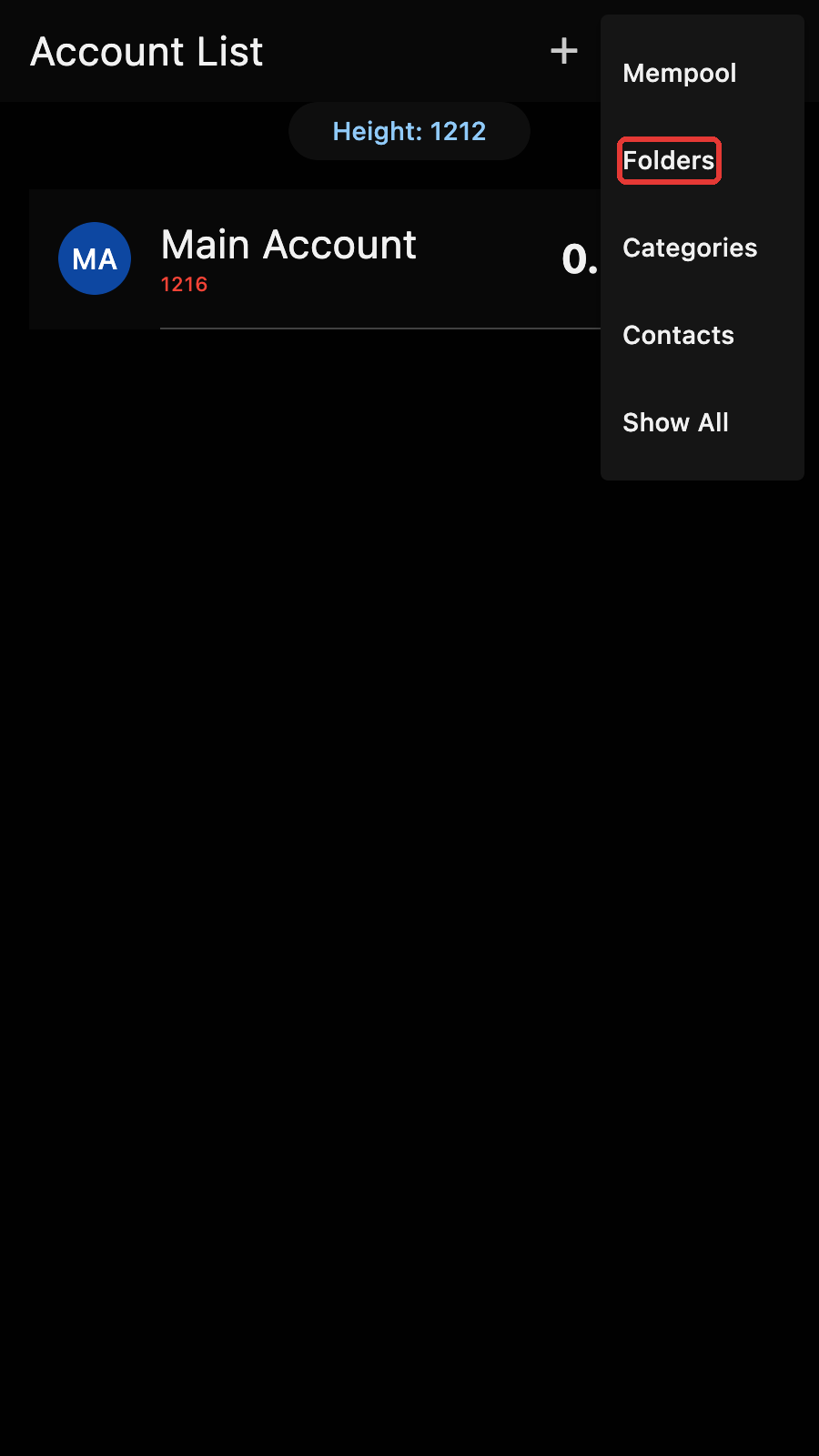
Folder Management
There, you will see the classic list editor. Add a new folder by tapping on the "+" icon. Rename an existing folder by selecting it and choosing the "Edit" Icon. Delete one or many folders by selecting them and tapping on the Delete button.
Deleting a folder does not delete the accounts. It moves them to the unassigned folder.
Select a folder by tapping on a row, the row will get highlighted. The account manager will only show the accounts in the select folder.
Tips
Folder selection is not persistent at the moment. When you launch the app, it shows the unassigned accounts.
Folders cannot be nested.
Assigning an account to a folder
Edit the account and select the folder in the dropdown list.
Tips
Folders are an easy way to move accounts from the main page. By default, accounts that are put in a folder do not show up.