Let's start adding our first account.
Press the "+" button on the app bar (or the "New Account" button in the middle of the page). The New Account page opens up.
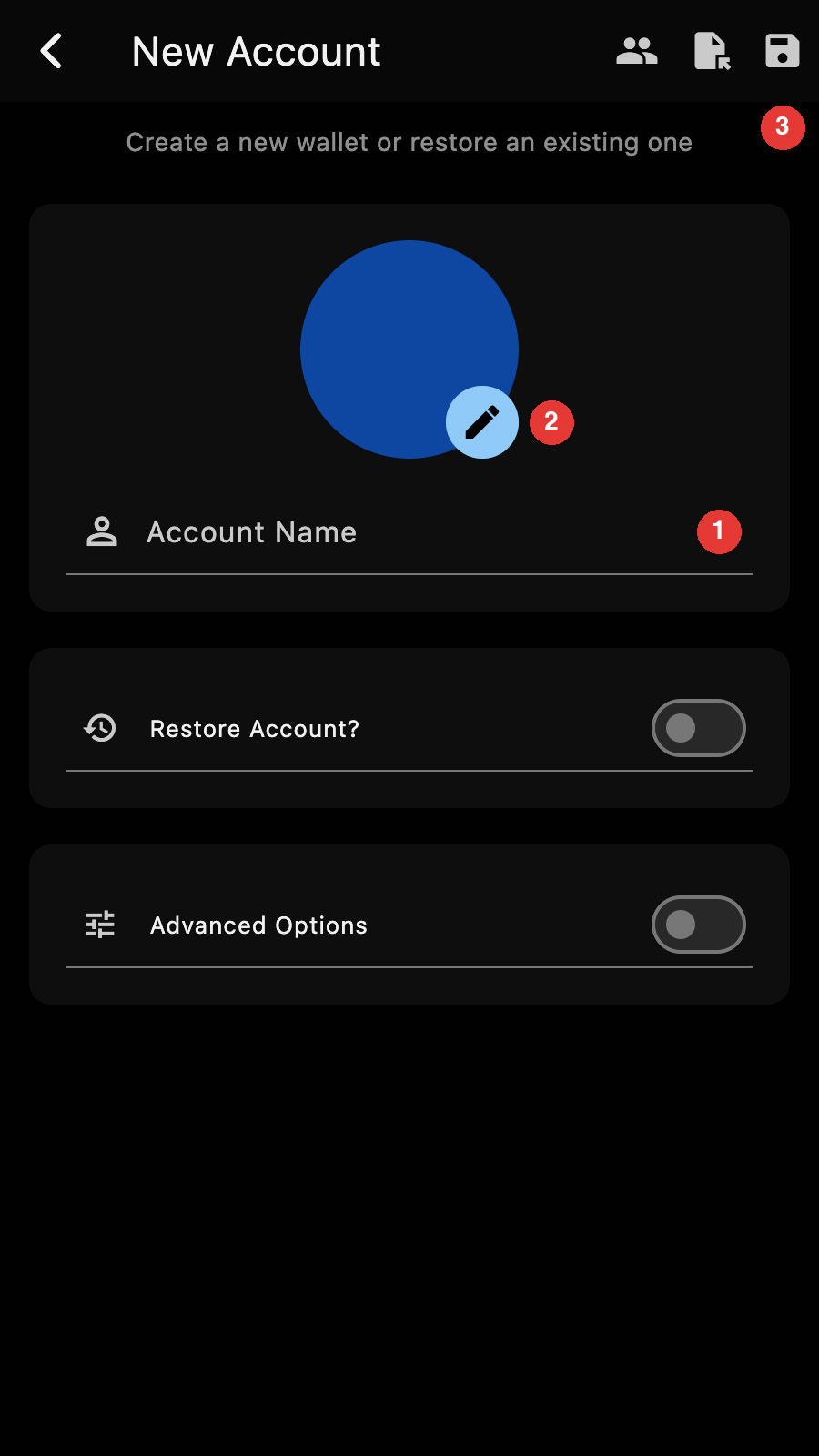
The page has three cards:
- the name and avatar of the account,
- the "Restore Account?" switch,
- the "Advanced Options" switch.
The app bar has a button to start a MultiSig Distributed Key Generation, a button to import an account from an encrypted file, and the save button.
New User
If you are a new user, you probably want a new account.
- Enter a name for the new account.
The account name is just for you to identify this account and can be anything you want. It is only kept locally.
Optionally, click on the thumbnail edit button and upload a small picture that will serve as an avatar.
Press the save button on the app bar to finish creating the new account.
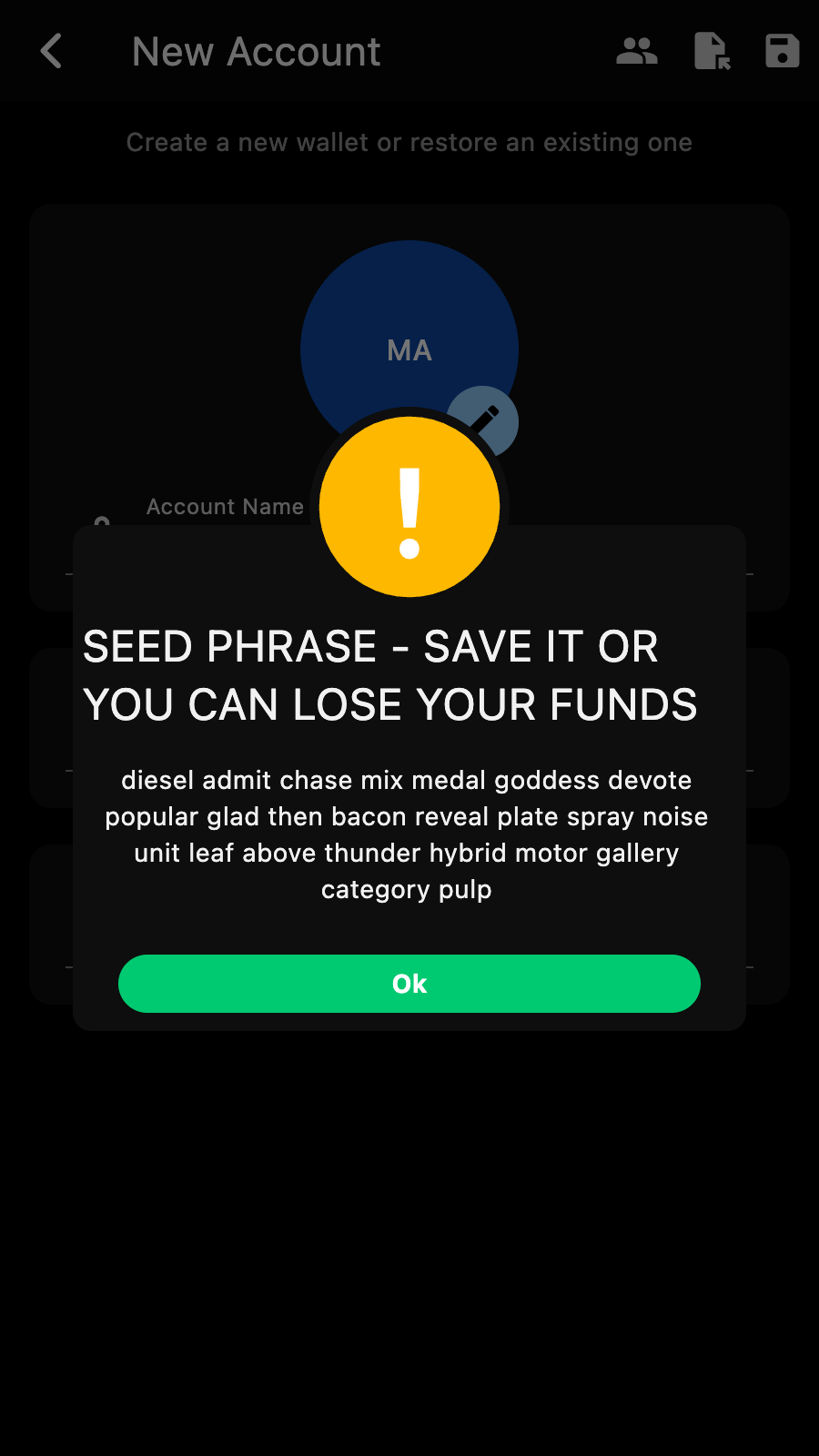
Zkool will show you the new account seed phrase.
Important
You should save your seed phrase (the 24 words) in a safe place. If for any reason the app fails to work[1], you will need the seed phrase to recover your funds.
Either manually copy the 24 words, or tap on the phrase to copy to the clipboard.
Important
Keep the seed phrase exactly as shown. Do not introduce spaces, capitalization, or change the order.
Press the Ok button once you are finished.
Zkool opens the page of the new account. You should have something like:
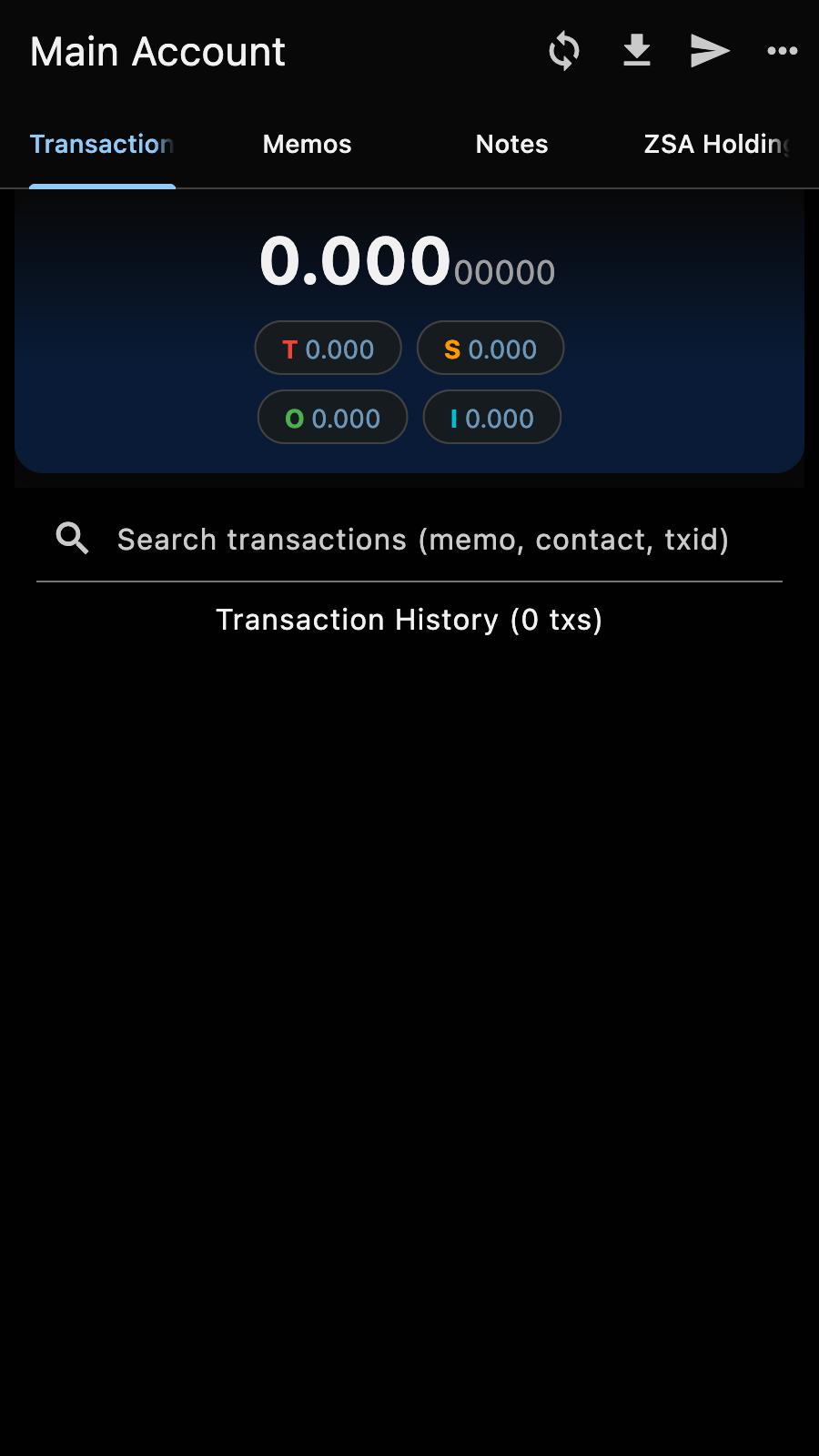
I called my account "Main Account".
Restore an old account
If you have used Zcash before and want to restore funds from another wallet, you need to use the "Restore Account" option.
Let's walk through this case. First tap on the "+" button to add a new account[2] like before.
- Enter a name
- Optionally, upload an avatar
- This time, switch on "Restore Account?"
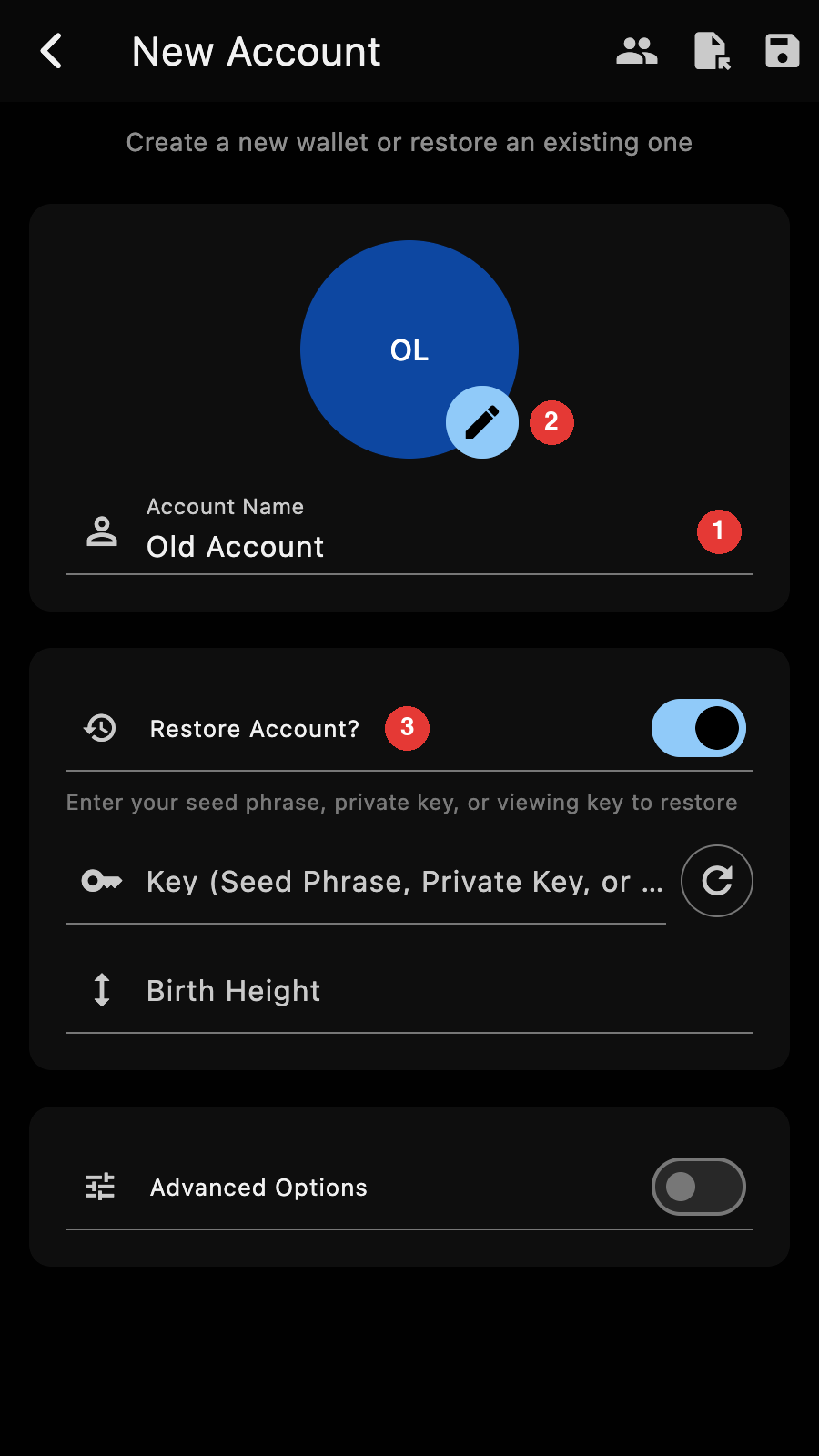
Now you have a field for the account key and a field for the birth height.
Tips
The page may be too long for your device screen and you may need to scroll down.
Zkool accepts various kinds of keys. The most common case is the seed phrase (12, 18, 21 or 24 words), but you can also recover accounts from
- a Sapling shielded secret key,
- a Unified Viewing Key (full or incoming only) or a Sapling viewing key,
- a transparent extended key (xpub/xprv),
- a transparent private key (starting with K or L).
In doubt, just try the key you have. If it is not supported, Zkool will display an error.
Tips
The button next to the key field generates a new seed phrase. It is useful when you want to see the seed phrase before the account is created.
Birth Height
The Birth Height is the block height when the account was created.
Important
Entering a birth height is needed when you restore an old account because it defaults to the current height. If you leave it blank, Zkool asks you to confirm.
Zkool will not scan blocks prior the birth height and therefore will not recognize any transaction that happened before. This is to save on bandwidth and computation since there may be millions of transactions to scan before the birth block.
You do not need to enter the exact birth height but the value you enter must be lower than the actual birth height.
Advanced Options
Switch on "Advanced Options" to see the derivation and pool settings. Depending on the type of key you have, you get different fields.
For example, if you are restoring from a seed phrase:
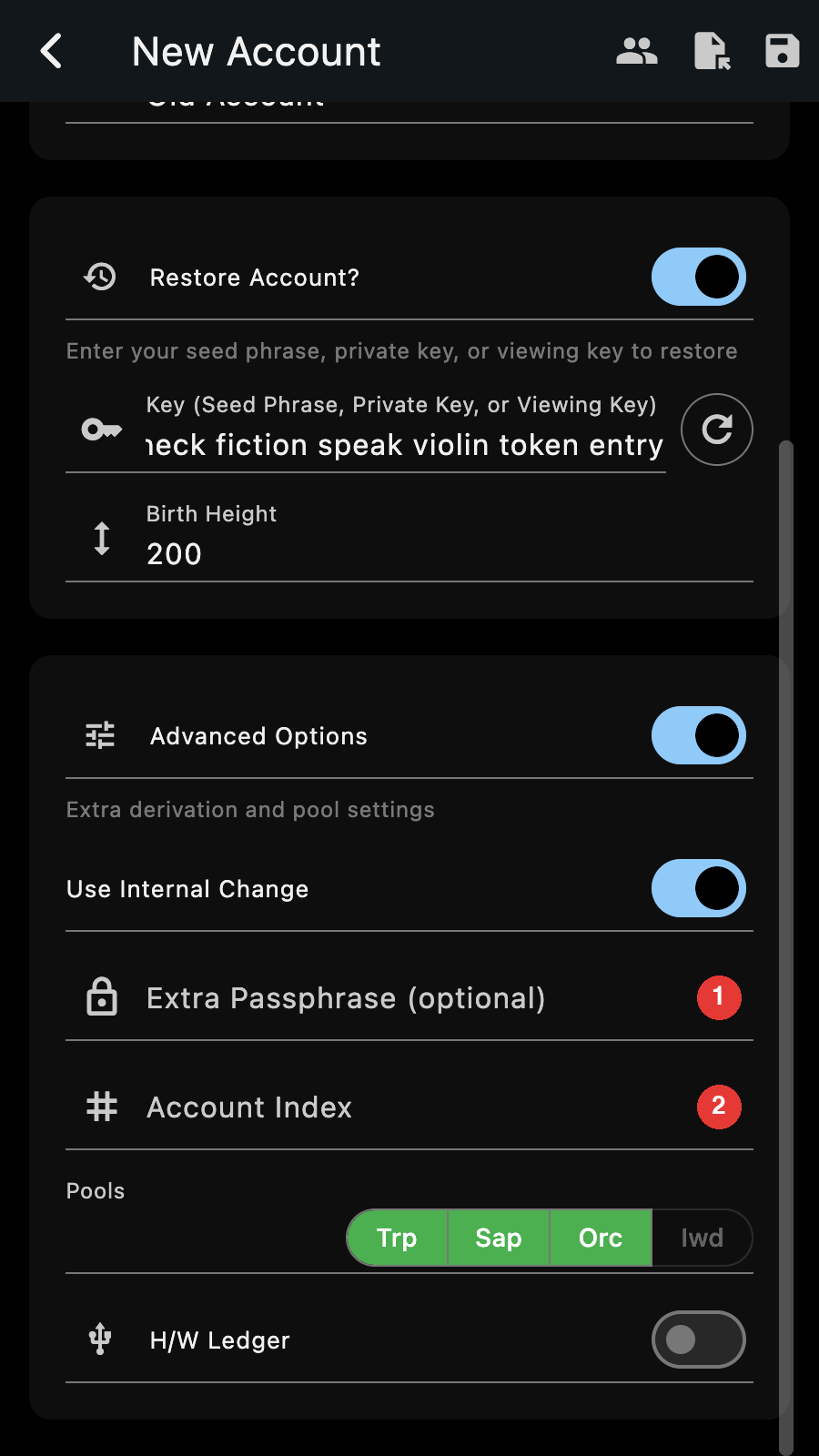
you can also enter
- an extra passphrase. This is the extra word that you used to customize your seed phrase. If you haven't used that feature, leave the field blank.
- an account index. From a seed phrase, a wallet app can derive multiple accounts. This is used by wallets like Trezor or Ledger when you have more than one account for Zcash. The first account has index 0. The second has index 1 and so on so forth. If you are restoring the first account, leave the field blank (or enter 0).
Internal Change
"Use Internal Change" is on by default. It follows ZIP-316: the change goes to an address different from the regular receiving address. It keeps the history of the main address clear of change outputs but can make synchronization take twice as long.
Zashi, Zingo, Zcashd and the other wallets that follow the ZIP-316 use internal change.
Important
Turn off "Use Internal Change" only if the wallet you are restoring from does not send its change to an internal address. Otherwise, Zkool will not find your change notes.
Pools
By default, Zkool will restore a wallet that has every pool derived by your key. For a seed phrase, that's every pool. However, you can decide to discard some pools.
Tips
Discarding pools can increase your privacy and synchronization speed because Zkool will not request any data from the server for the discarded pools.
In fact, Zkool will not even derive the keys for the pools you exclude.
For example, if you do not want to use any transparent transaction, you can discard the transparent pool.
Hardware Wallet
The "H/W Ledger" switch creates an account whose keys are on a Ledger device. See the Ledger recipe.
Press the Save button once you are finished.
If the restored account has a transparent pool, Zkool offers to scan for alternative transparent addresses.
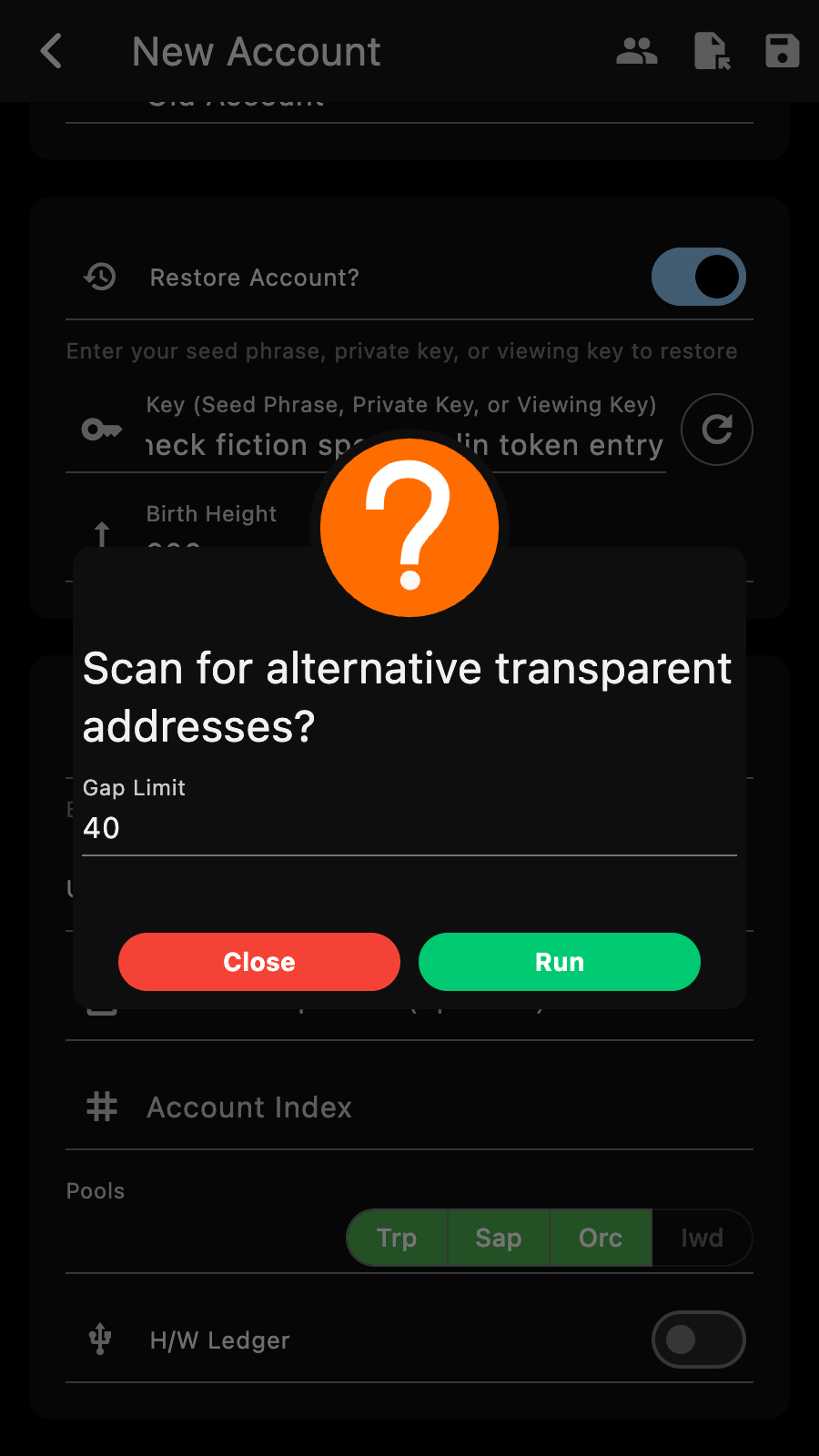
Press "Close" unless you are restoring from a transparent wallet that rotates its addresses (Ledger, Exodus, etc). The scan is explained in the Addresses page and can be started later from the receive page.
Finally, Zkool asks if you want to synchronize the account now.
Tips
If you have more than one account to restore, restore them all before doing the synchronization[3]. Answer "Cancel" and synchronize from the account manager when you are done.