Requirements
- A funding account with some ZEC to pay for transaction fees. A minimum of 0.001 ZEC but 0.01 ZEC is safer.
- Between two and seven participants. Everyone must be present for the DKG.
- The same version of Zkool on every device.
Overview
- There can only be one DKG in progress at any given time[1].
- The process is distributed. The participants do not have to be in the same place. They do not have to run the DKG concurrently. But the process needs their Zkool open to make progress. Otherwise, the DKG pauses until then.
Example
Let's say Alice, Bob and Charlie want to create a MultiSig Account with two required signers. They should have their copy of Zkool running. We'll describe from Alice point of view. The other participants are expected to do the same thing.
Setup
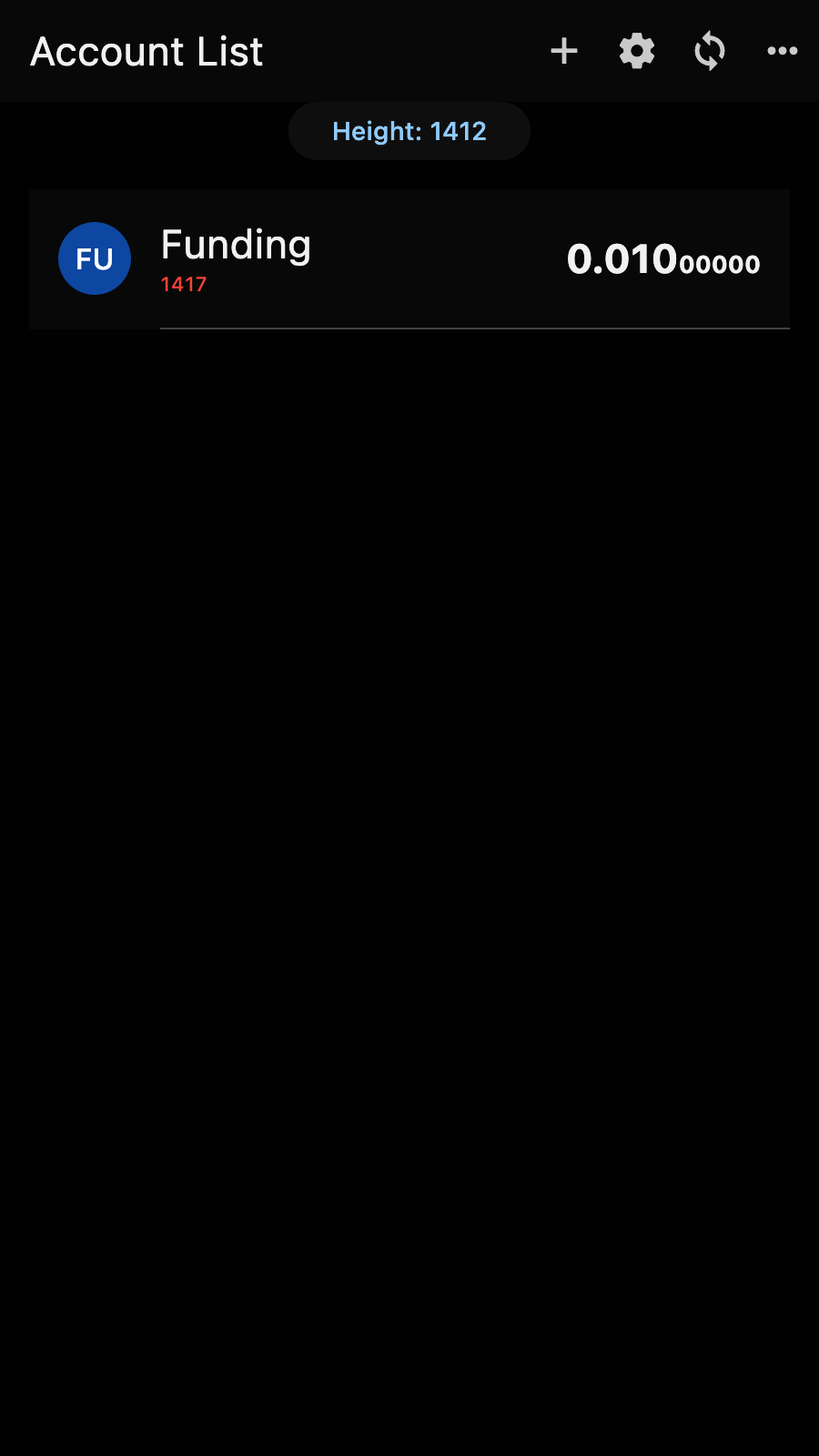
In the beginning, you should have the funding account. You may have other accounts but for simplicity we'll assume that the funding account is the only one you have.
Important
Every participant should have their own funding account.
Form
Tap on the "+" from the app bar.
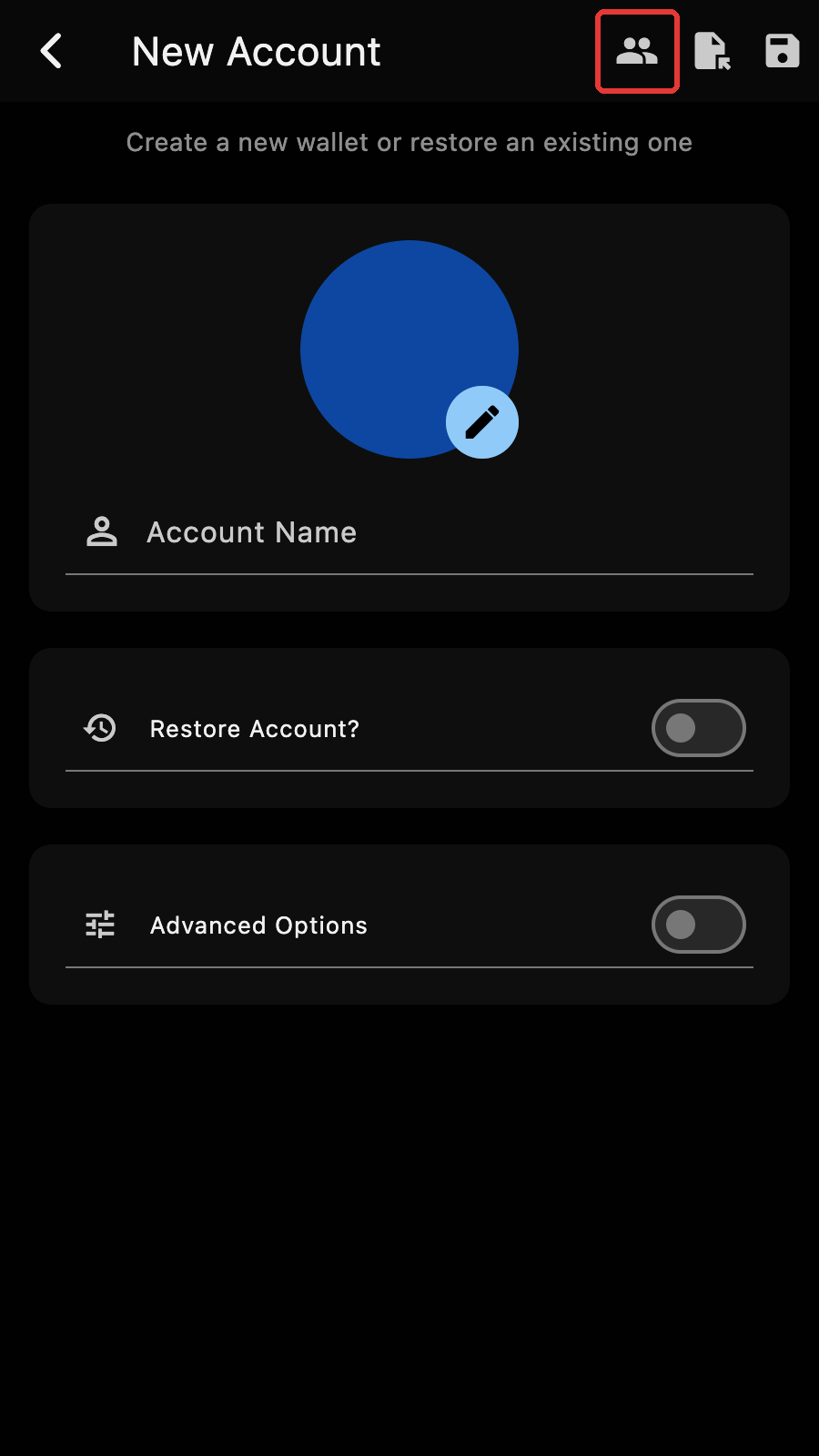
Tap on the "Start Distributed Key Generation" icon. Do not tap on the save button, this would create a standard account.
Next, we need to fill the following form.
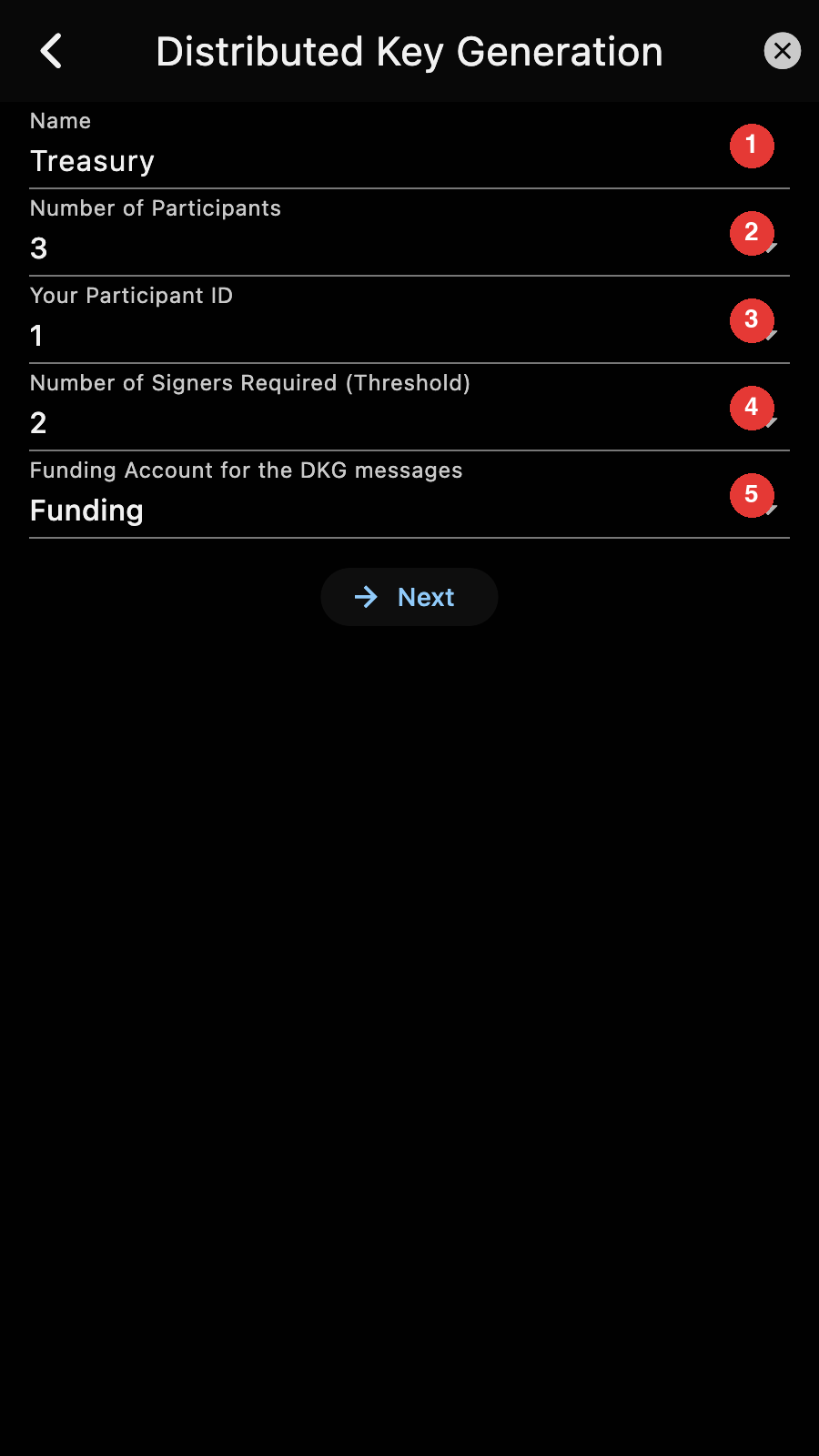
- Name of the account. This is kept locally. You can choose any name you want and it does not have to be the same as the name the other participants choose. It can be edited later like a standard account.
- This is the number of participants. We have 3 participants, so we should set this to 3.
- Your participant ID. Every participant must choose a distinct ID. We'll assign Alice to 1, Bob to 2 and Charlie to 3.
- This is the number of required signers for spending. We said we wanted two out of three. This must be between 2 and the number of participants.
- The name of the funding account. Select the account from the dropdown box.
Once you finished filling the form, press the "Next" button. If the funding account holds less than 0.001 ZEC, Zkool warns you before going on.
Participant Addresses
Next, you have to fill the participant addresses. You start with a form that only has your address.
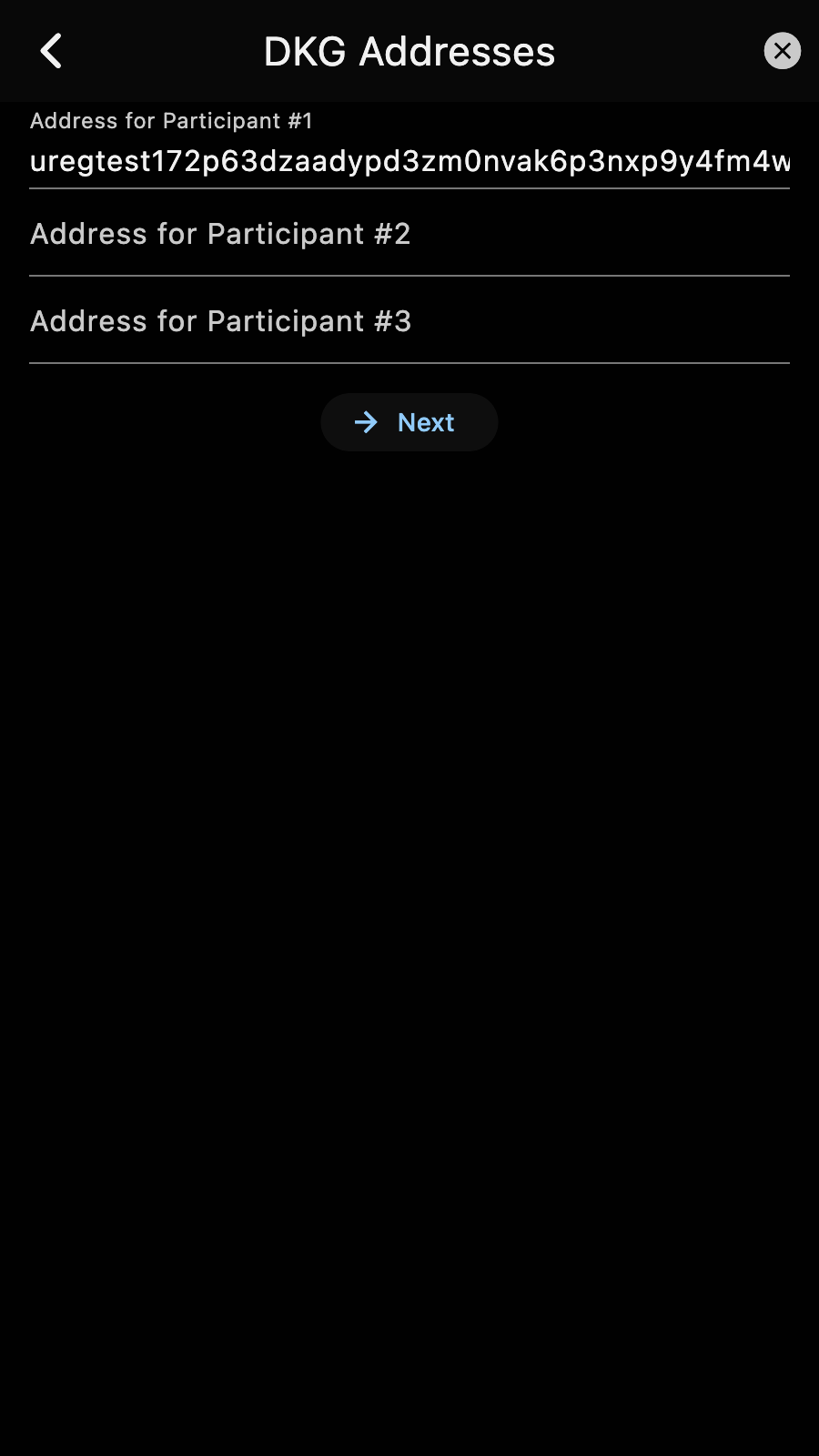
Ask the other participants to give their address. This address is used for the DKG and SIGN multi party ceremonies. The form must be filled correctly otherwise the DKG will not succeed.
Your address should be kept between the participants. It is not critical for the DKG protocol but it is preferable not to share it publicly.
Tips
Now that the DKG has started, to cancel the DKG you need to tap the cancel button. If you simply want to pause it and do something else, tap the back button or close the app. Resume it by starting the DKG again. Zkool will not ask you to fill the form if a DKG is in progress.
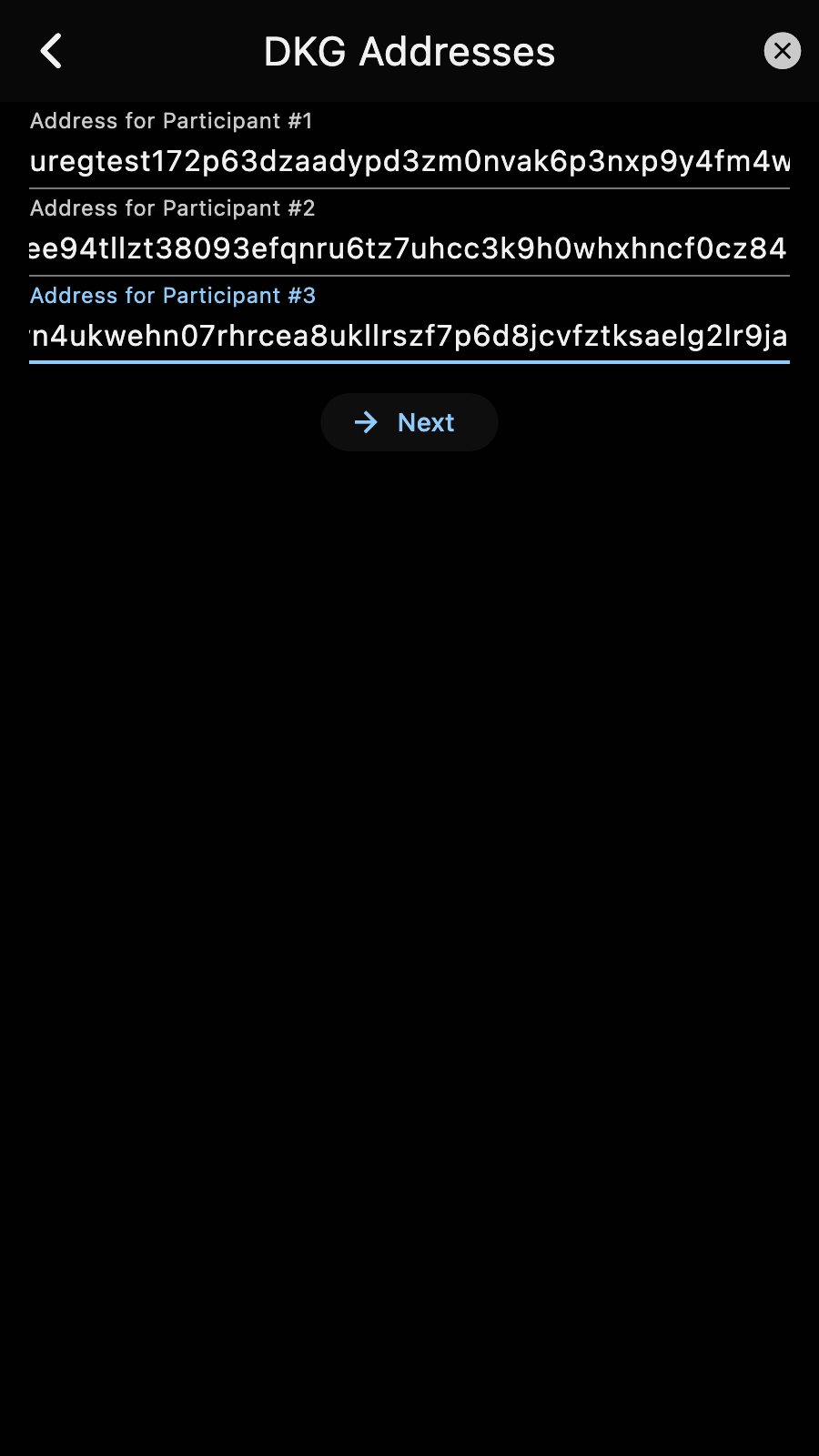
Once we filled the addresses of the other participants, we can go to the next step.
Zkool prepares and broadcasts the first messages. The steps at the top of the page show where the DKG is: the participants exchange their keys, then two rounds of packages, and finally derive the shared key. The status line says what Zkool is doing or waiting for, and how many participants have sent their message so far.
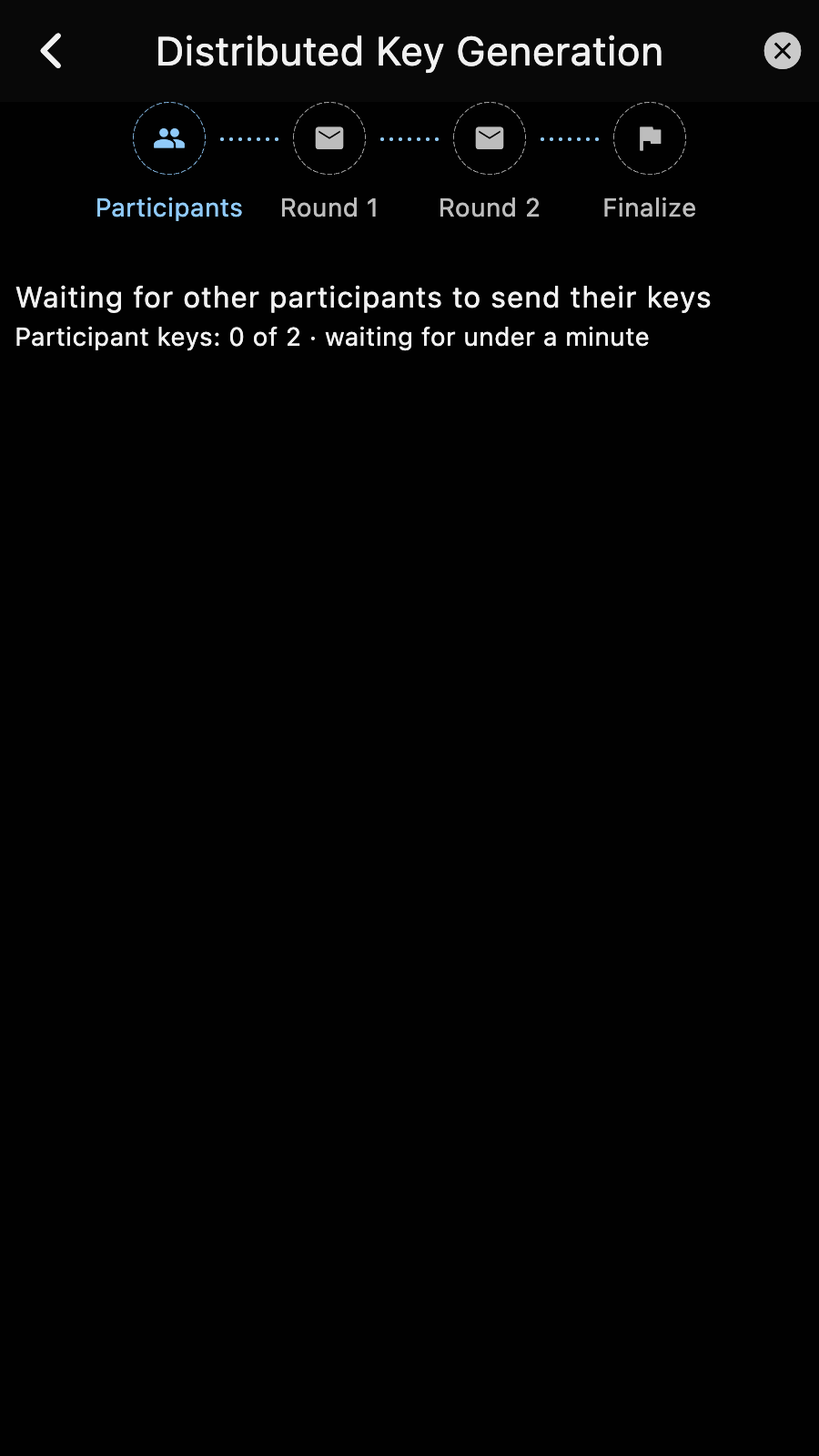
The DKG process continues when every participant has broadcast their message. Zkool will keep synchronizing automatically when the DKG page is opened. If you close the app, you can resume the DKG by restarting it, but do not cancel it.
Please make sure you come back to this page or leave it open.
Tips
At this point, DKG is fully automated as long as all the participants leave their Zkool running. This is the easiest method but still will take a few blocks. The DKG takes about 5-10 minutes.
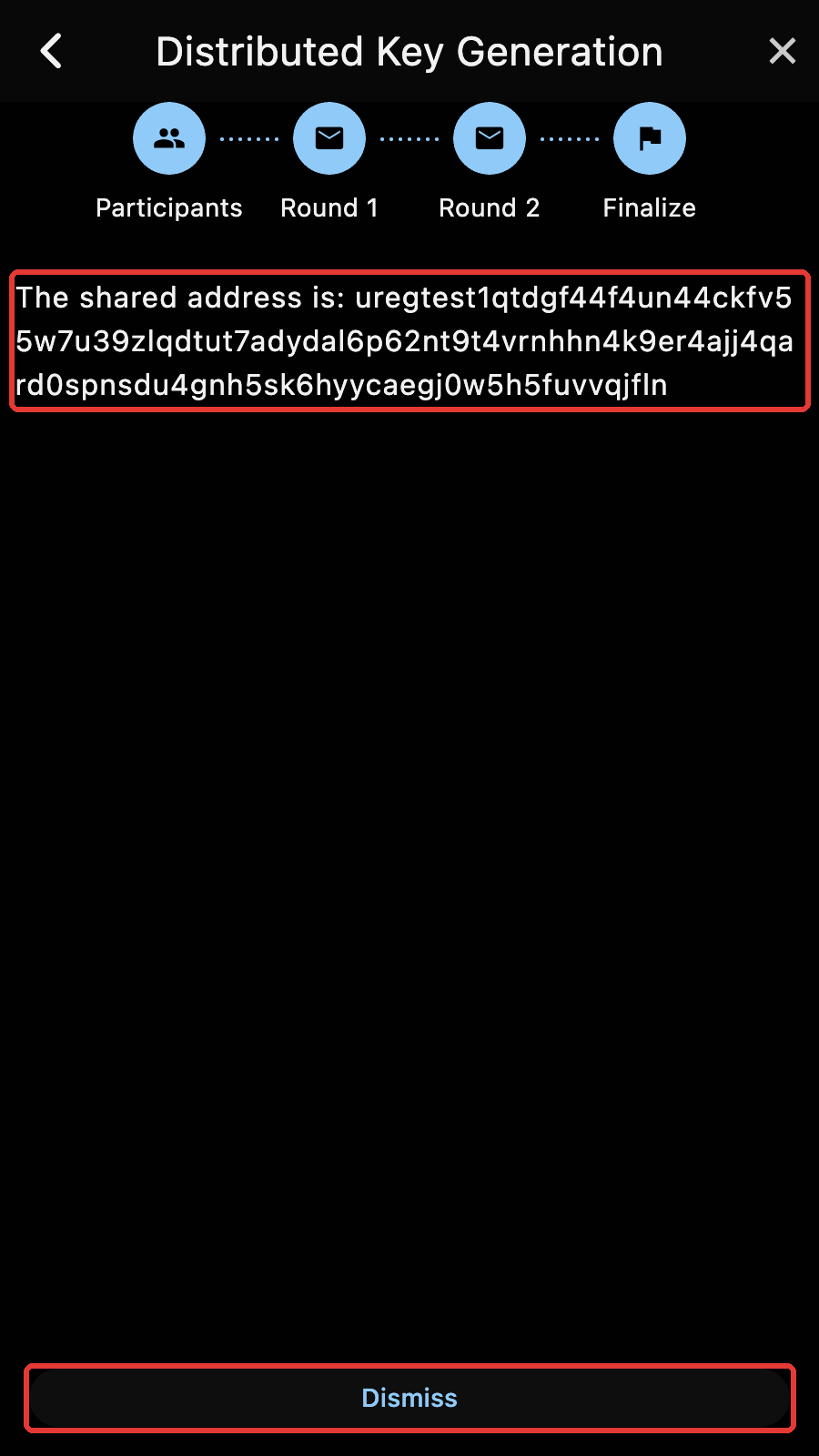
It ends with a popup, "DKG completed", and the page shows the shared address. You don't need to copy this address because an account has been created.
Close the DKG page by tapping the "Dismiss" button.
Tips
Now would be a good time to save the backup string of your new MultiSig Account.
DKG Protocol
- The Broadcast address is readable by every participant.
- The Round 2 Package is sent as one transaction with multiple recipients.
- A participant waits for its own message to be mined before sending the next one, so the funding account never spends the same note twice.
For a given database. ↩︎