This page covers the basic functionalities of Zkool.
Tips
I highly recommend to read this section once because Zkool does not always work like other wallets.
I am using the MacOS version but the app behaves similarly on other platforms.
Installation
Zkool is available on the Google Play Store and the Apple Store. The easiest way to find it is to search by its name zkool.
The app store versions may be behind the "latest and greatest". The latest version is on the Github release page.
The release page has builds for Windows (installer and zip), MacOS, Linux (Flatpak, AppImage and Deb package), Android (APK) and iOS.
First Run
Disclaimer
Next, you must accept the disclaimer that states that Zkool is a non custodian wallet.
Important
You have full control of your secret keys. Make sure to have a backup of the seed phrase
Your keys are only stored on the device database. If you lose your device, or reset the data, your keys and your funds are lost if you do not have your seed phrase.
It may sound obvious, but make a backup of your seed phrase before you send funds to the account.
Scroll to the bottom of the page, check the "I Agree" switch and click on the "Continue" button.
Device Authentication
Zkool does not ask for your device authentication when it starts. It asks for it when you do something sensitive:
- show or hide the hidden accounts,
- show the seed phrase or the backup string of an account,
- unlock the app when the "Pin Lock" option is on.
The device authentication is the method you use to protect your device, i.e. a pin, password, fingerprint or face lock.
On Windows, a password is not sufficient. You need to set a PIN, a fingerprint or face lock.
Tips
"Pin Lock" is off by default. When it is on and you come back to Zkool after it spent more than 30 seconds in the background, it shows a locked screen. Tap on the logo to authenticate and unlock it. The option is in the Settings page.
Tooltips
Most buttons and fields have a tooltip that explains what they do. Hover over them with the mouse on desktop, or long press on mobile.
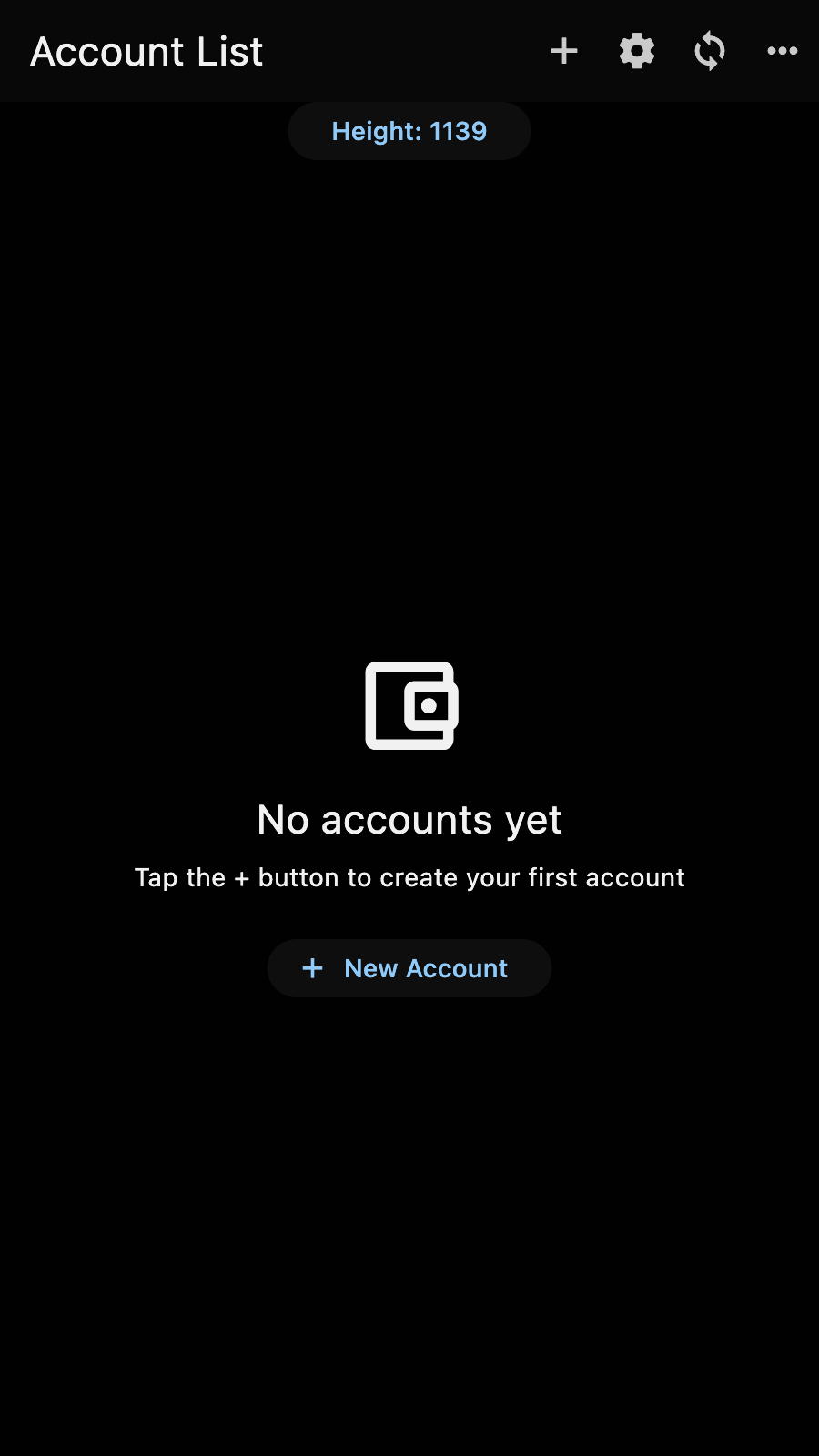
You should see the account manager screen now. It is empty.