A Cold Wallet is a wallet that has secret keys but remains disconnected from the Internet at all times.
It is not sufficient to be disconnected most of the time. For instance, a wallet on a phone that it is turned on only when making transactions is NOT a cold wallet.
To make a payment, there needs to be another wallet that connects to the Zcash network and synchronizes the blockchain data. This wallet has the account viewing key to properly identify the wallet transactions but is not capable of spending any funds. We'll call it the "Hot Viewing Wallet"[1].
You have two copies of Zkool: The "Hot Viewing Wallet" (HVW) and the "Cold Wallet" (CW).
Tips
To make sure the Cold Wallet does not connect to the Internet, you can turn off WIFI and Mobile Data. Zkool has the "Offline" switch in the Settings page as well.
Setup
- Start on the CW. Create a new account. Backup the seed phrase to a safe place (do not put the seed phrase on your phone or in the Cloud).
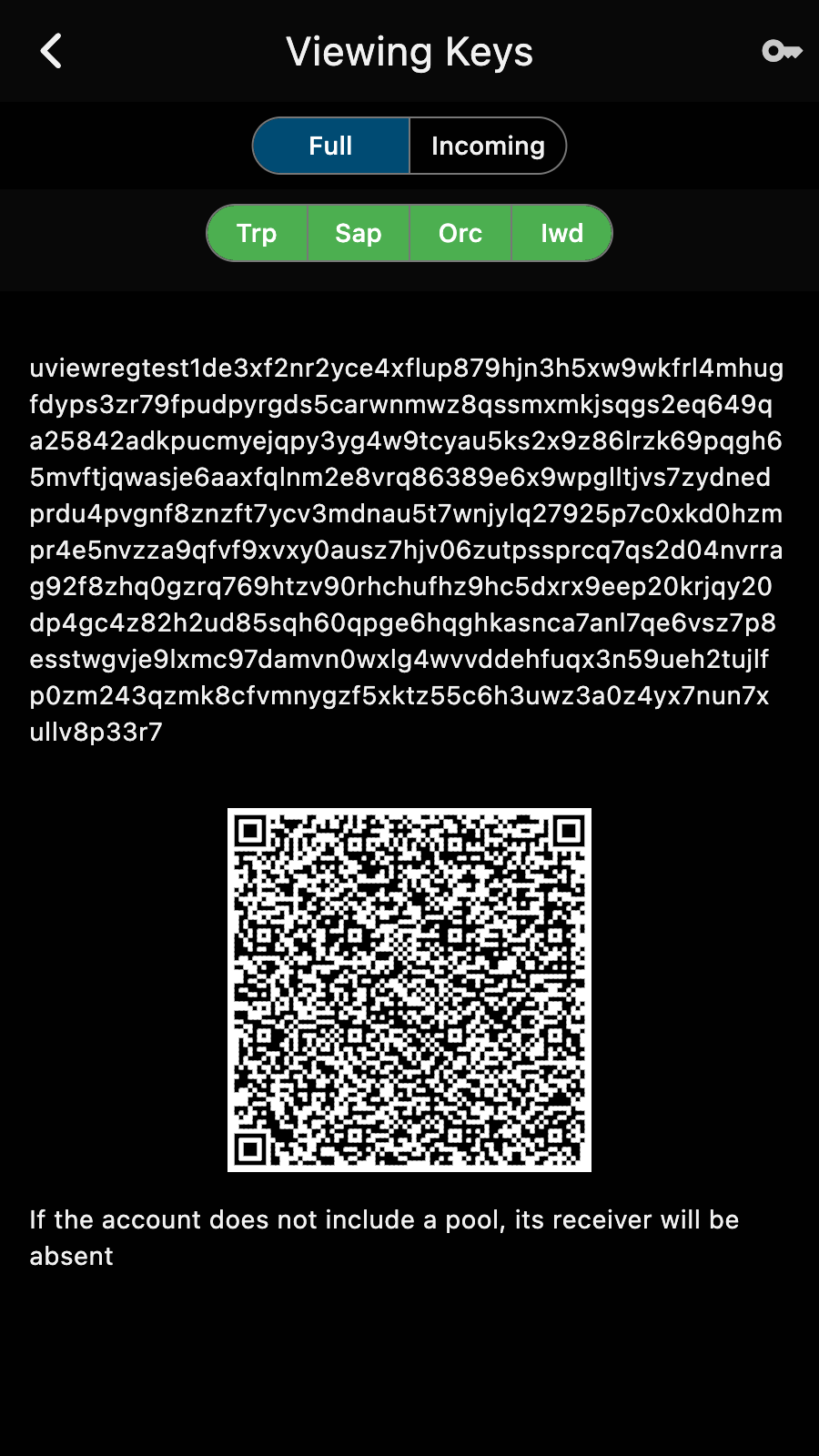
- Show the UFVK: on the account page, choose "Backup" in the menu. Keep "Full" selected.
Tips
Scan the QR code on the HVW and restore a wallet using it as the Key.
- Synchronize it.
Important
- Make sure you keep the cold wallet offline.
- Make sure you do not have a copy of the seed phrase on a device that can connect to the Internet.
- The CW needs the Sapling parameters to sign. Download them from the Settings page before you take it offline.
Payments
Step 1: Make the Unsigned Transaction
Use the HVW to monitor incoming transactions and verify outgoing payments. To start a payment from the account, use the HVW and enter the details of the payment as usual.
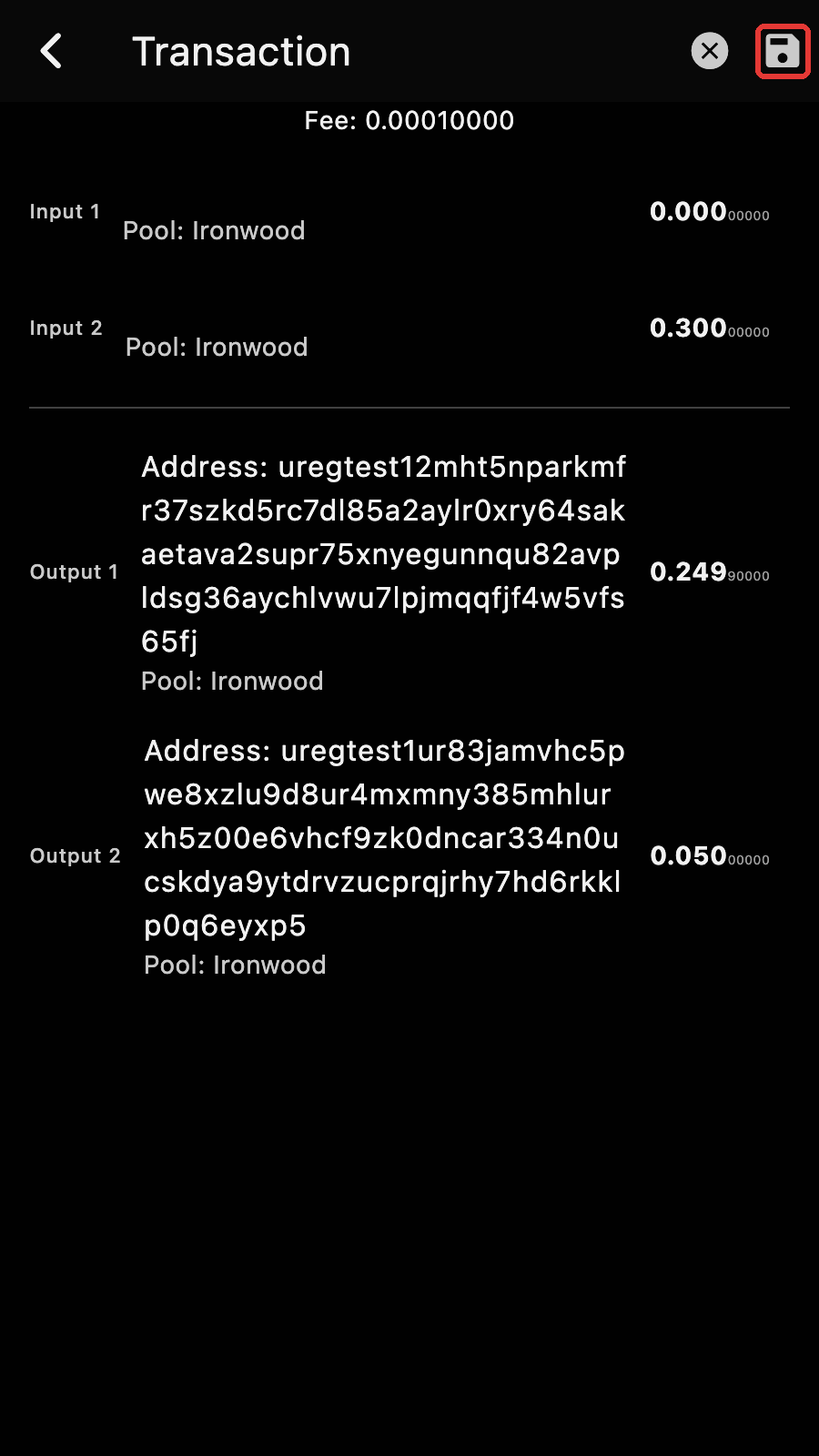
Once you reach the final screen with the Transaction Plan, you probably will notice that the "SEND" icon has been replaced by a "SAVE" icon. This indicates that the account cannot sign the transaction and is view/watch-only.
Use this to make a PCZT (Partially Created Zcash Transaction) file.
Tips
Use a clean USB drive to move the PCZT file. The file does not have secret data but contains the details of the transaction. It is better not to put it online if the transaction has to remain absolutely private. If your devices have cameras, turn on "File Transmission via QR Codes" in the Settings of both wallets. Zkool then shows the file as a series of QR codes instead of saving it, and scans them instead of opening a file.
Step 2: Sign the Transaction
On the CW, open the send page of the account that has the secret key and tap on the "Load an unsigned transaction" button.
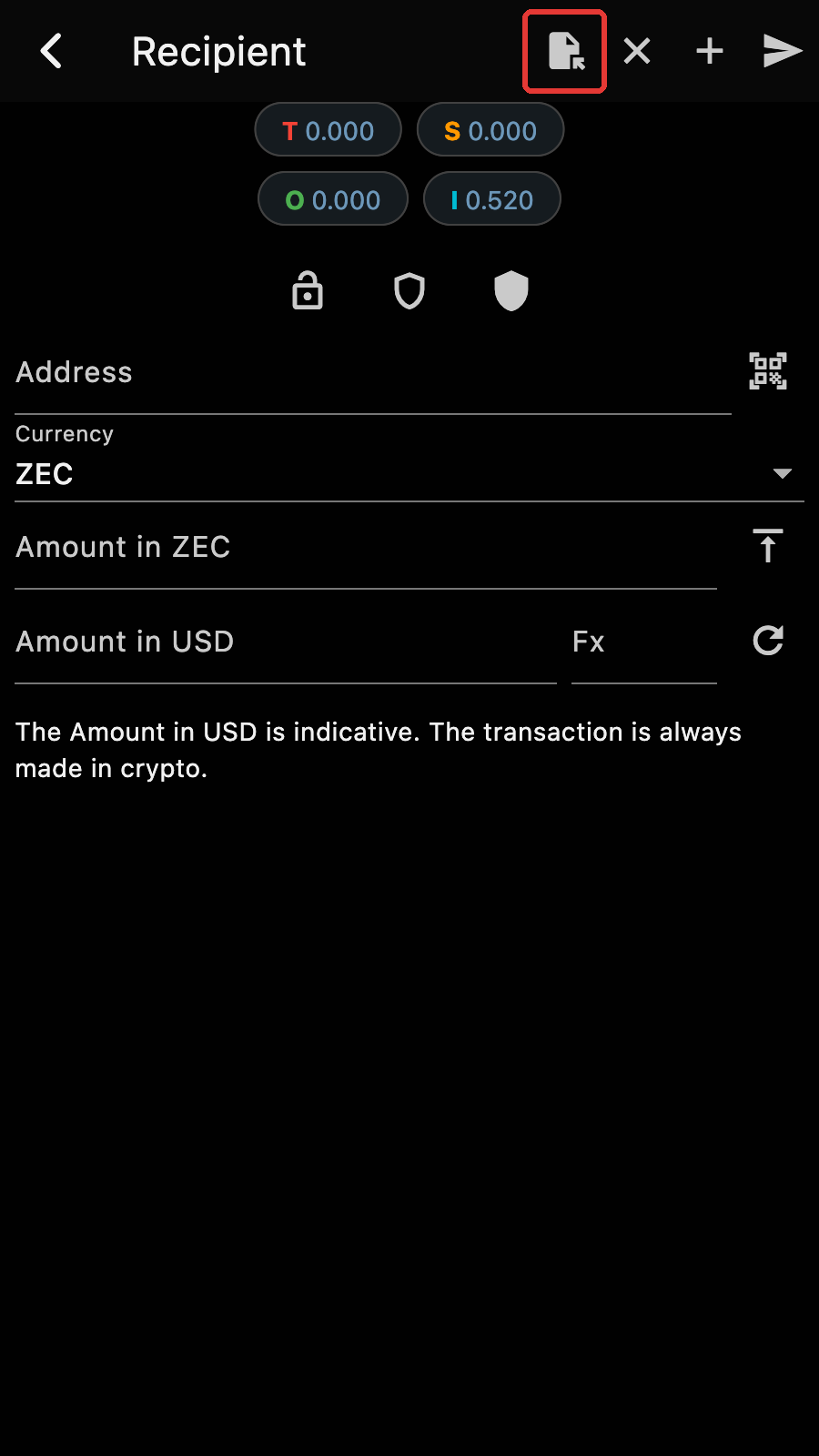
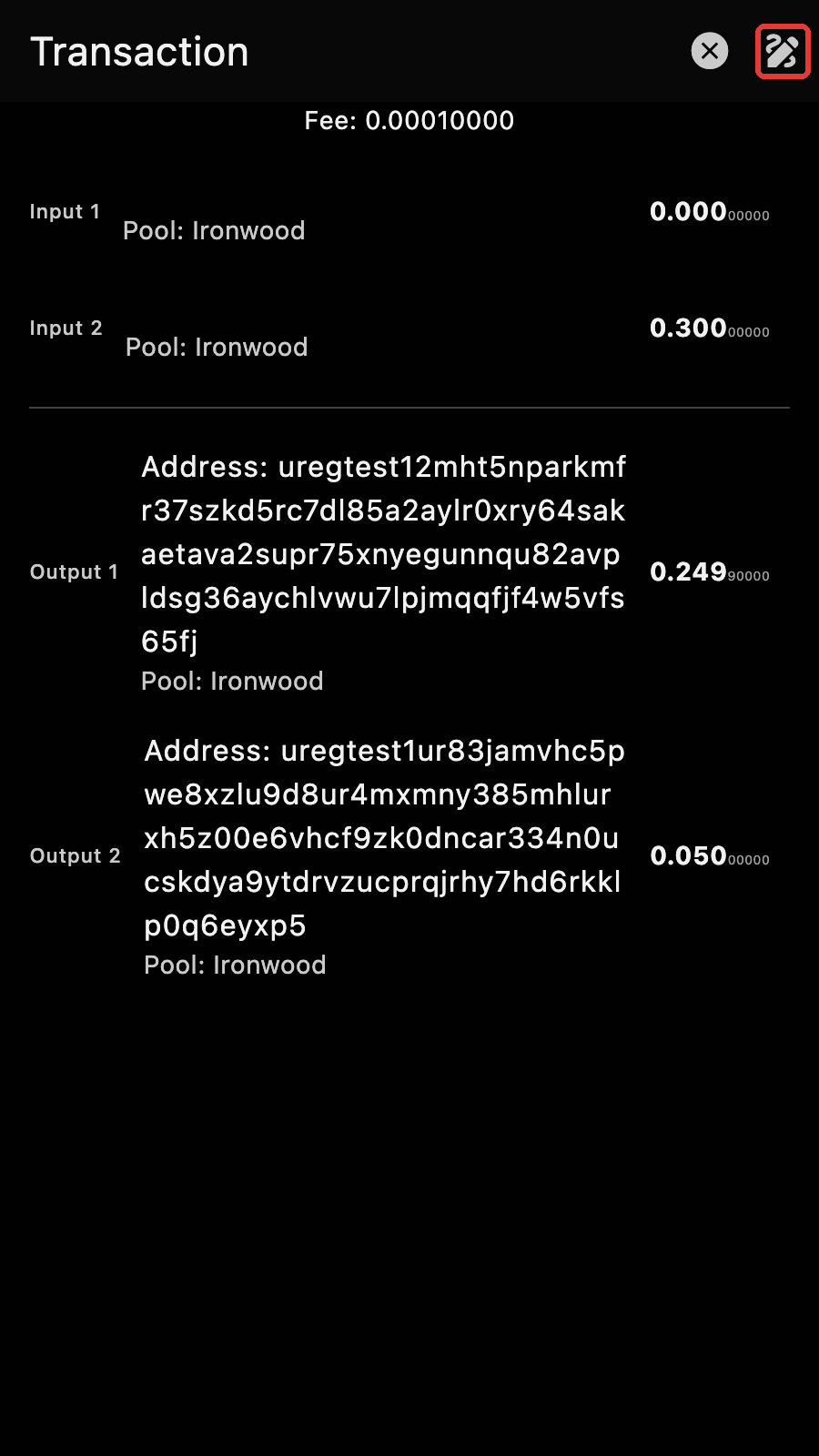
The transaction plan appears, with a "SIGN" icon in place of the "SEND" icon.
Important
Make sure you CHECK the transaction before signing.
Tapping on it signs the transaction and saves the signed transaction file. Transfer the file back to the HVW using the same mechanism as before but in the reverse direction.
Step 3: Broadcast the Signed Transaction
On the HVW, load the signed transaction from the send page of the account that has the viewing key.
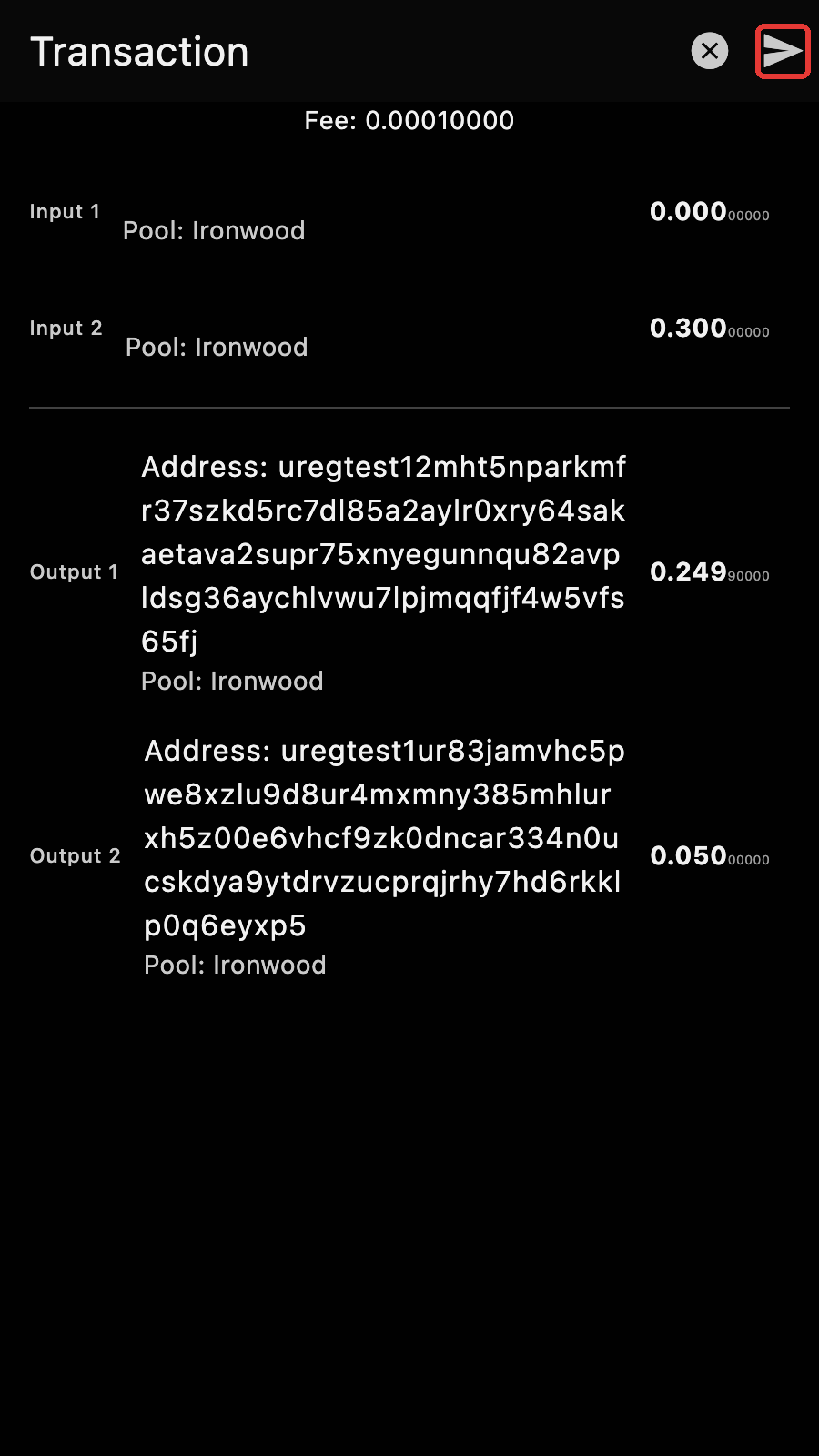
Press the Send button to send the transaction out.
Tips
You should check one last time that the transaction is as you want. This is the final step.
A hot wallet is a wallet connected to the Internet. ↩︎