Database File
Zkool keeps all the account data and some of the settings in wallet files, which are Sqlite/SqlCipher database files.
They are regular files that can be copied, moved and renamed outside of the Zkool when they are not in use.
Zkool has a database manager to perform these tasks because the directory where the app stores its data is out of reach of regular file managers unless the device is rooted.
Because the database manager acts on the database file, it needs to run before the wallet loads the data from it. This is why it cannot be accessed after the account list is read.
In the settings, tap on the "folder" icon.
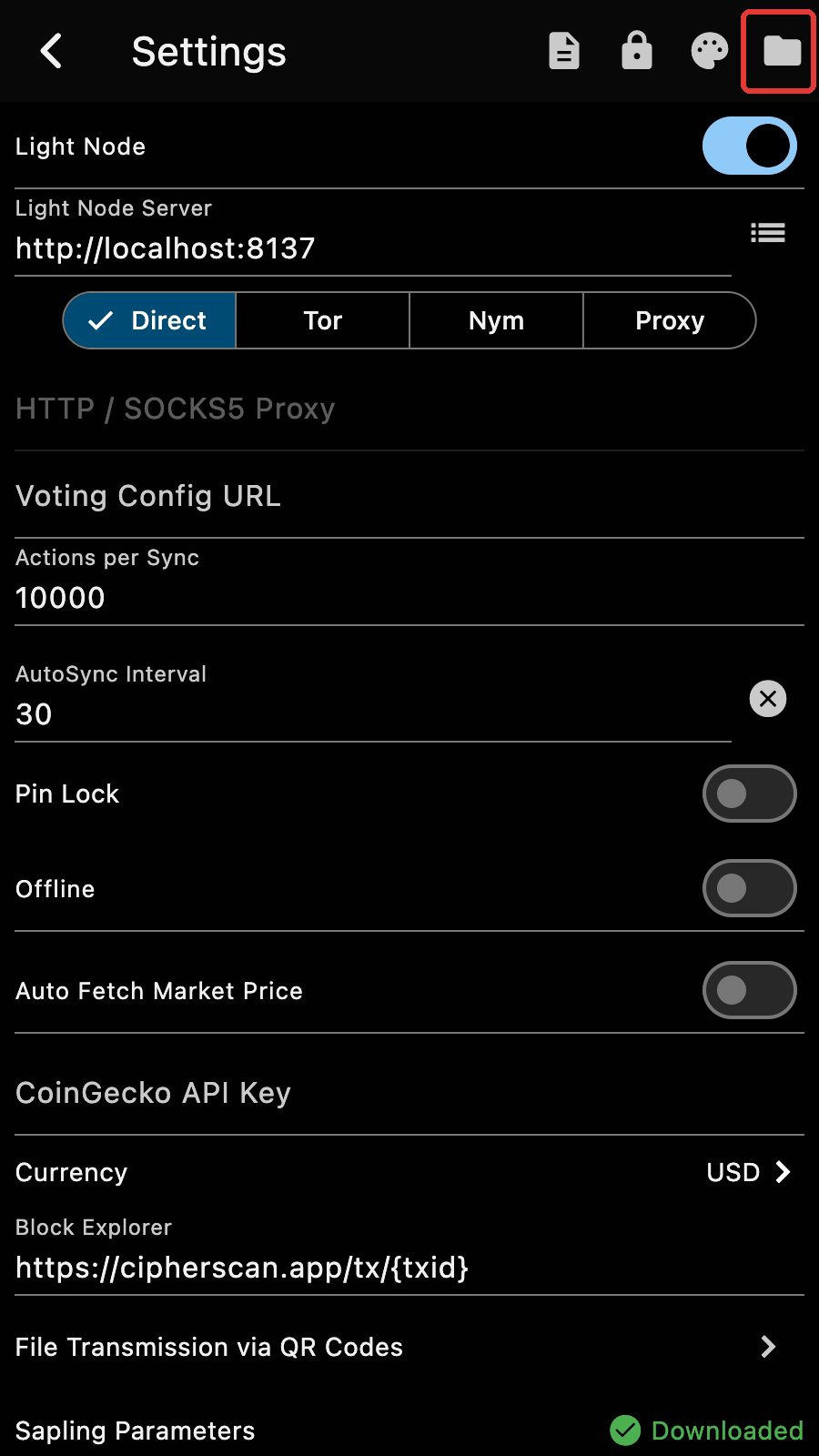
It schedules the opening of the database manager for the next launch of the app. Restart the app[1].
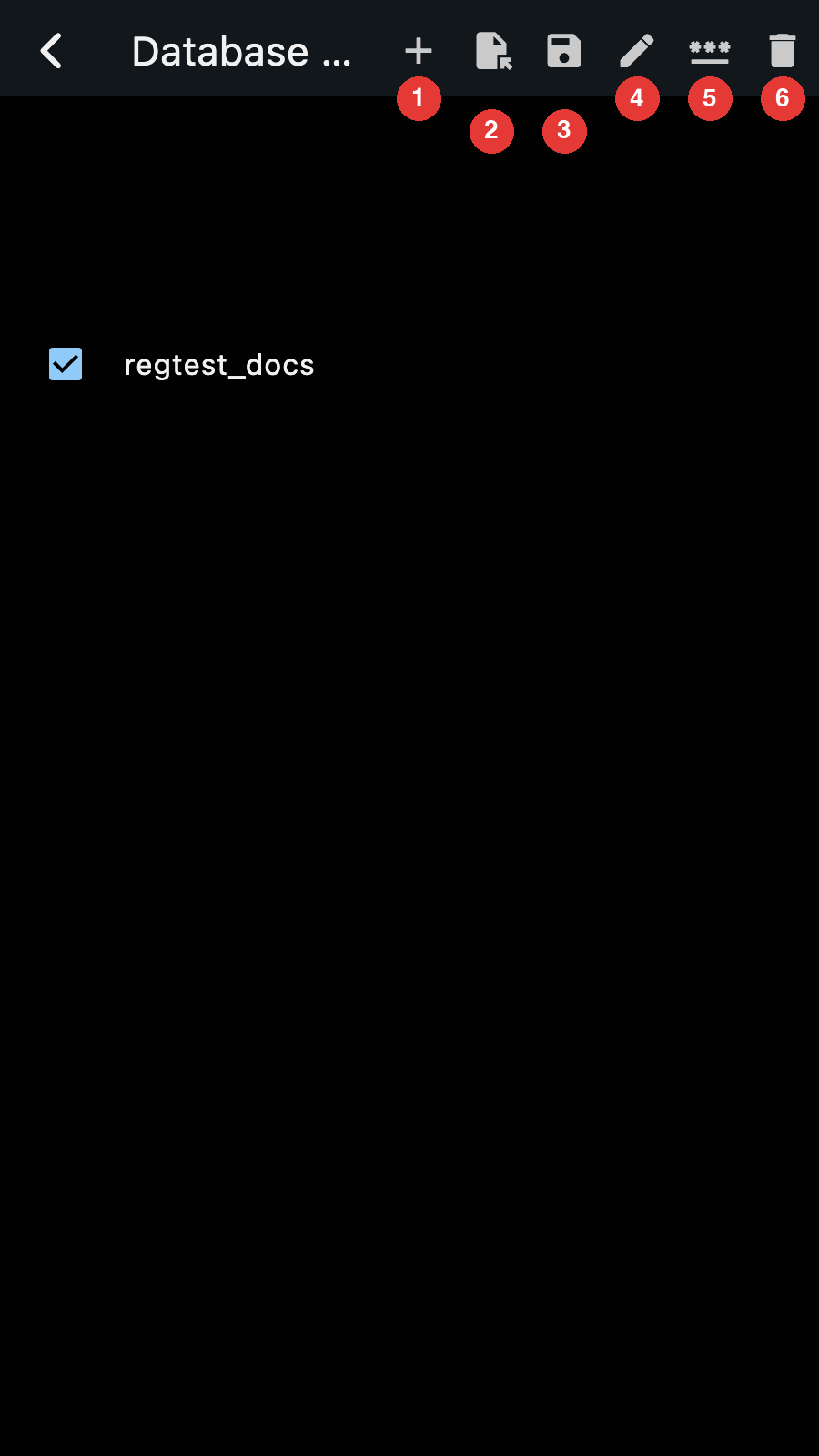
- Create a new database
- Import and replace the selected database. This erases the current contents
- Save the database file (ie. make a copy). The copy is identical to the original file, ie. it has the same password (if any)
- Edit the name of the database file
- Set/Unset a password
- Delete
Some of the options are only available once you check the box next to the database name in the list.
Tap on a database name to open it as the current database. Zkool shows its accounts and asks for confirmation.
Account File
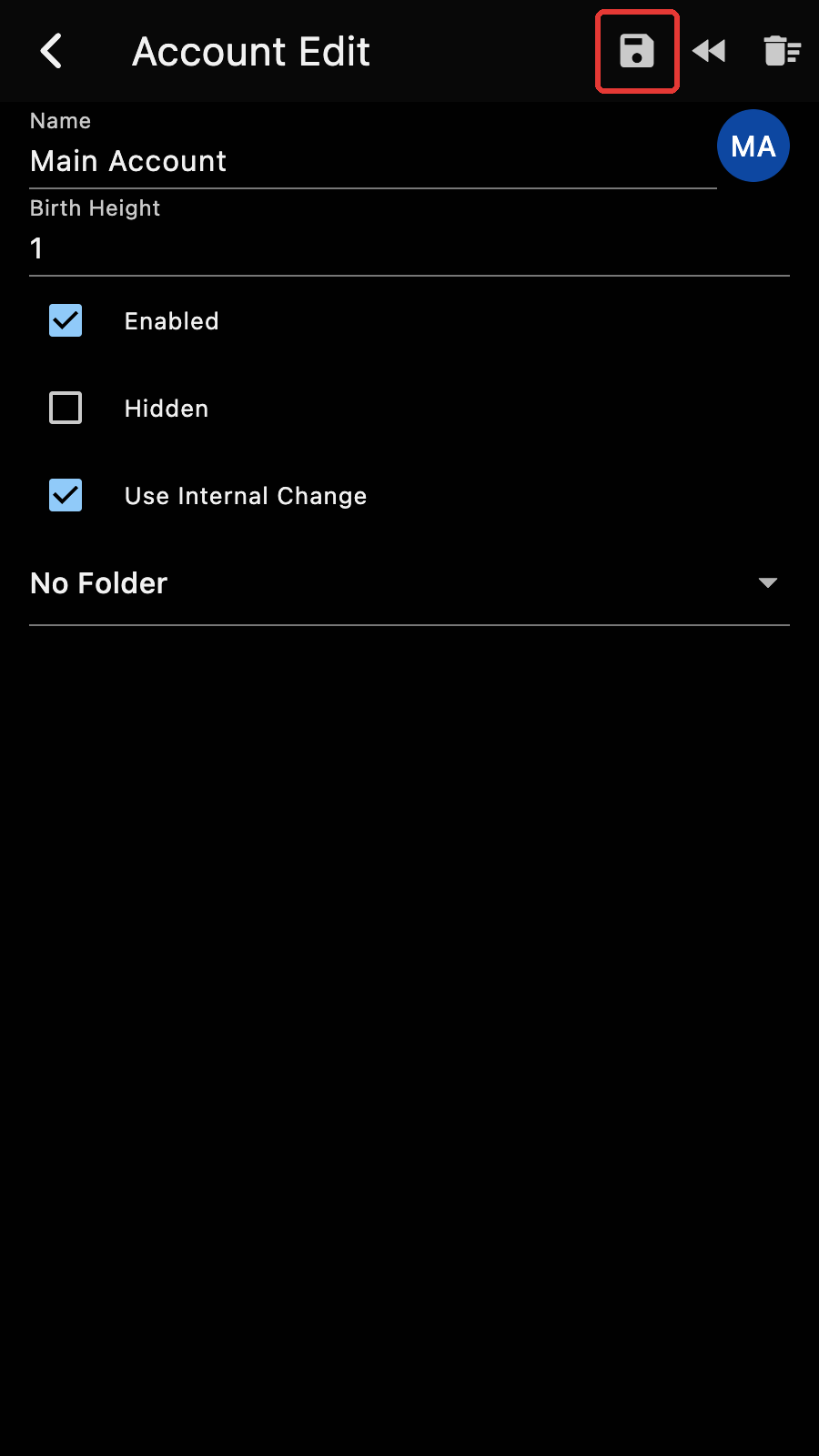
Accounts can be individually exported in encrypted form with a user provided password, from the account edit page.
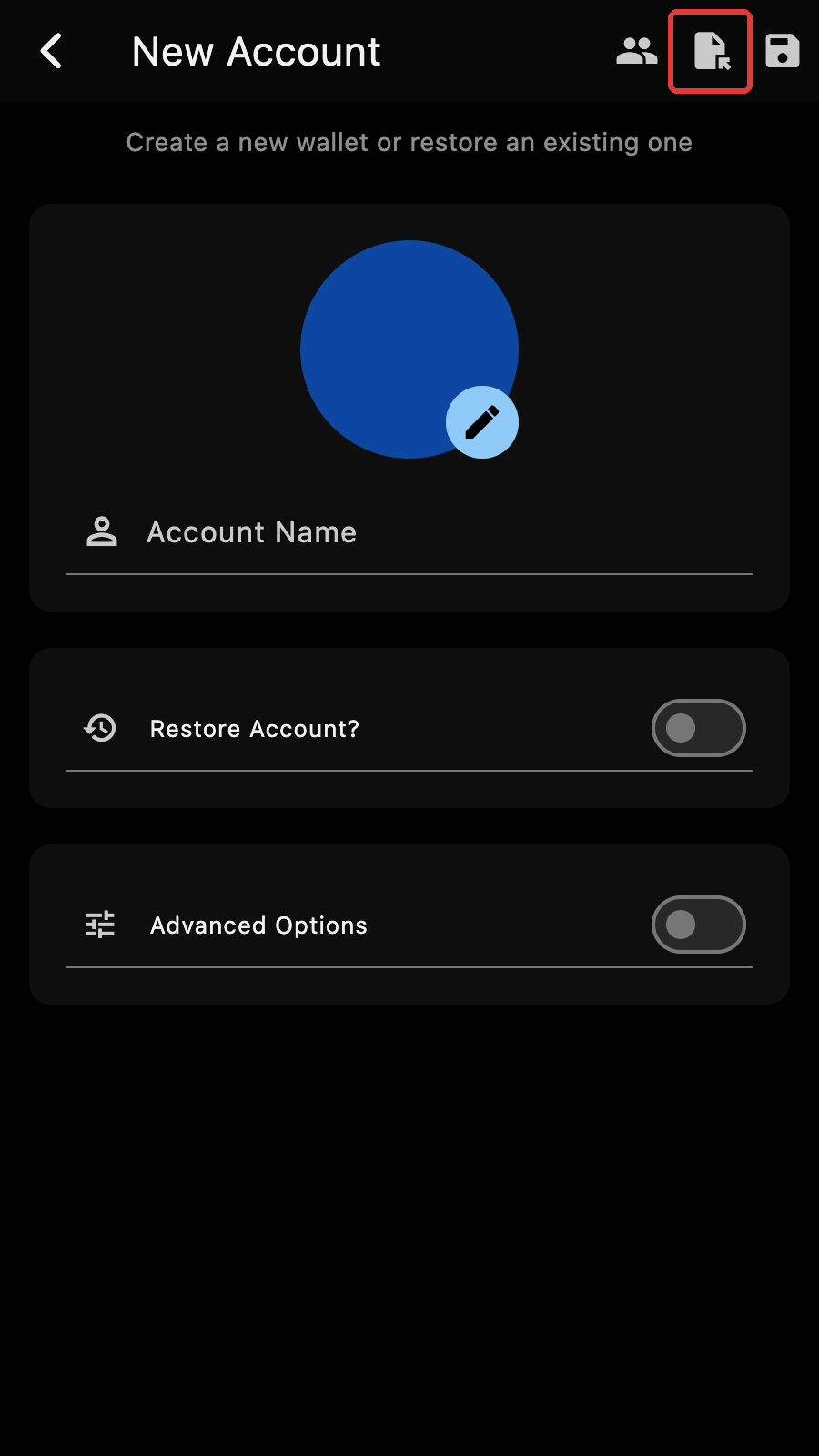
The account file can be then imported into another database by creating a new account and choosing the load file button.
Important
The password set during the creation of the account file must be input. There is no way to recover the password if it is forgotten.
The database is a SQLCipher file. It can be browsed using a tool such as DB Browser for SQLite
If you have a database password set, you can also open the database manager from the dialog box that asks for the password. ↩︎